You can copy documents onto letter-size, legal-size, or A4 plain paper or Epson special paper just like you would on a copy machine.
|
1.
|
Press the
 On button to turn on the Artisan 700 Series. On button to turn on the Artisan 700 Series. |
|
3.
|
Load letter-, A4-, or legal-size paper.
|
|
4.
|
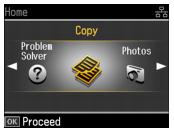
|
5.
|
Press OK.
|
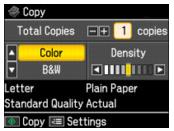
|
6.
|
|
7.
|
|
8.
|
|
9.
|
To change any of the print settings displayed on the screen, press Menu. Then press
 or or  to select Paper and Copy Settings, and press OK. to select Paper and Copy Settings, and press OK. |
Press to change any of the settings on the screen.
to change any of the settings on the screen.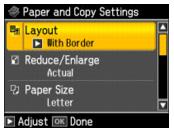
|
•
|
To change the layout, press
 or or  to select Layout. Press , then press or to choose one of the following settings: to select Layout. Press , then press or to choose one of the following settings: |
|
Expands the image all the way to the edge of the paper (slight cropping may occur)
|
|
|
Copies two pages of a book or magazine onto a single sheet of paper.
|
|
•
|
To adjust the copy size, press
or to select Reduce/Enlarge. Press , then press or to select either Actual (to select a percentage using + or –), Auto Fit Page (to automatically size the image to fit your paper), or any of the specific sizing options offered. Press OK. |
|
•
|
To change the paper size, press
or to select Paper Size. Press , then press or to select the size of paper you loaded. Press OK. |
|
•
|
To change the paper type, press
or to select Paper Type. Press , then press or to select the type of paper you loaded. Press OK. |
|
•
|
Press
or to select Document Type. Press , then press or to select Text (for plain documents) or Text & Image (for documents containing photos or graphics). Press OK. |
|
•
|
To change the copy quality, press
or to select Quality. Press , then press or to select Draft (for plain paper only), Standard Quality, or Best. Press OK. |
|
•
|
To adjust the amount of image expansion when printing borderless photos, press
or to select Expansion. Press , then press or to select Standard, Medium, or Minimum. Press OK. |
|
11.
|
Press
 Start to begin copying. Start to begin copying. |
To cancel copying, press  Stop/Clear Settings.
Stop/Clear Settings.