|
1.
|
|
2.
|
|
3.
|
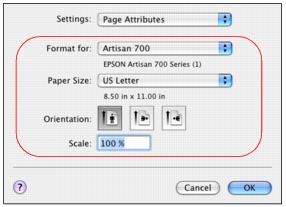
Select the Paper Size setting for the paper you loaded.
|
If you want to print a borderless photo, select the paper size with a Borderless option.
You can load paper in these sizes and select the size in the printer software. A Custom option is also available so you can create a custom size (in OS X 10.3.9, select Custom Paper Size from the Settings pop-up menu).
Envelope #10 (4 1/8 × 9 1/2 inches)
Half Letter (5 1/2 × 8 1/2 inches)
|
4.
|
Choose a portrait or landscape Orientation option for your document or photo. (Choose landscape left for envelopes.)
|
|
5.
|
|
6.
|
Click OK to close the Page Setup window.
|