You can copy a printed photo, illustration, document, or CD/DVD label directly onto an ink jet-printable 12-cm CD or DVD for a custom look. You can print your design on plain paper first to see how the label will look.
|
1.
|
|
2.
|
|
3.
|
Press OK.
|
|
4.
|
 or
or  to select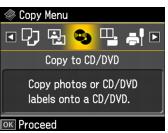
|
5.
|
Press OK.
|
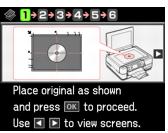
|
7.
|
|
8.
|
Select Test Print on Letter/A4 paper.
|
|
9.
|
Press OK.
|
|
11.
|
|
12.
|
Press
 Start to begin your test print. Start to begin your test print. |
|
13.
|

|
15.
|
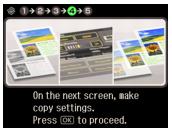
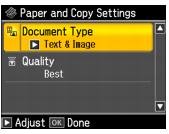
|
•
|
|
•
|
|
16.
|
Press OK when you are finished selecting settings.
|
|
17.
|
Press
 Start to print your CD/DVD. Start to print your CD/DVD. |