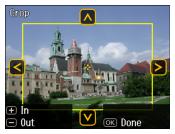
You can copy photos onto 4 × 6-inch, 5 × 7-inch, 8 × 10-inch, or letter-size Epson special paper (various types available) for instant photo reprints. You can restore the colors in faded photos, convert color photos to black-and-white, and crop your photos.
|
1.
|
Load 4 × 6-inch or 5 × 7-inch paper in the photo tray. Load larger sheets of Epson Photo Paper (various types available) in the main tray. Always load paper with the printable side face-down.
|
|
2.
|
|
3.
|
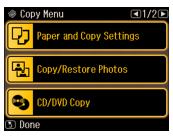
Press Menu.
|
|
4.
|
Select Copy/Restore Photos.
|
|
5.
|
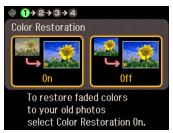
To turn on Color Restoration to restore colors in faded photos as you copy, select On. (If your photo is not faded, do not turn on Color Restoration.)
|
|
6.
|
Press OK.
|
|
7.
|
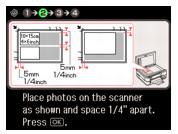
Place your original photos on the scanner glass.
|
|
8.
|
When you see this screen, press OK to start scanning your photos:
|
|
10.
|
|
11.
|
|
•
|
|
•
|
|
13.
|
Press OK again to continue.
|
|
14.
|
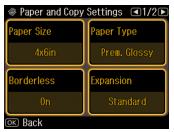
To change any of the print settings displayed on the screen, press Menu, then select Paper and Copy Settings.
|
|
•
|
To change the paper size, select Paper Size, then choose the size of paper you loaded.
|
|
•
|
To change the paper type, select Paper Type, then choose the type of paper you loaded.
|
|
•
|
To change the print layout, select Borderless, then choose On to expand the image all the way to the edge of the paper (slight cropping may occur) or Off to leave a small margin around the image.
|
|
•
|
To adjust the amount of image expansion when printing borderless photos, select Expansion, then choose Standard, Medium, or Minimum.
|
|
•
|
|
•
|
|
16.
|
Press
 Start to begin copying. Start to begin copying. |
To cancel copying, press  Cancel.
Cancel.