Scan to Email automatically scans a photo or document, launches your e-mail application, and attaches the file as a JPG image to a new outgoing message. This feature works with MAPI-type e-mail such as Microsoft® Outlook or Outlook Express, but not web-based e-mail such as Yahoo® or Gmail. (If you’re not sure, check with your email provider to deterine what type of email account you have. If you have Windows 7, you need to install Outlook or Outlook Express to be able to use this feature.)
Before you begin, place your original on the scanner glass or in the Automatic Document Feeder.
|
1.
|
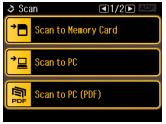
|
2.
|
 or
or  and select
 |
•
|
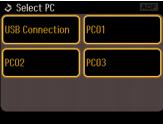
If your product is connected to the computer over a network, select the name of the computer on your network.
|
|
6.
|
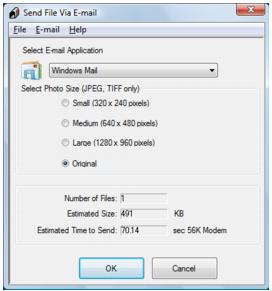
If you want to resize your image(s), choose an option under Select Photo Size.
|
Note:
The box at the bottom of the window displays information about the image file(s) you’re attaching to the e-mail message.
The box at the bottom of the window displays information about the image file(s) you’re attaching to the e-mail message.
|
7.
|
Click OK. Your e-mail program is opened and any scanned images are attached to a new e‑mail message. See your e-mail program for help if you need instructions on sending your e‑mail message.
|