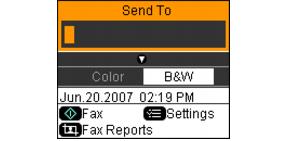
You can send your fax by manually entering a fax number, redialing the previous fax number, or selecting an entry from your speed dial list.
|
1.
|
|
2.
|
Press the Fax button to enter fax mode.
|
Use the numeric keypad to enter the fax number. You can enter up to 64 digits.
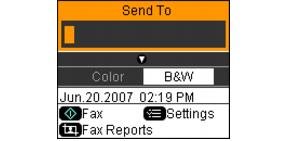
If you’ve connected a telephone to the CX9400Fax Series, you can use it to dial the fax number. After dialing the number from the phone, you see the screen below.
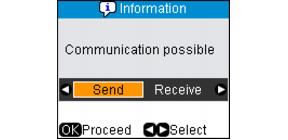
Select Send, then press OK. This opens a channel of communication to the receiving fax machine. Continue with step 5 to select other settings and scan your document.
Press Speed Dial/Backspace. Select or type the number of the speed dial entry you want to use, then press OK.
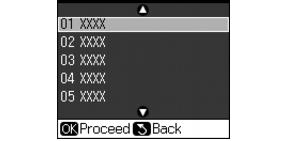
If you want to redial the last fax number you used, press Redial/Pause. The last fax number is displayed on the screen.
|
4.
|
Press
 . . |
|
5.
|
Note:
If the recipient’s fax machine prints only in black and white, your fax data is automatically sent in black and white even if you select color.
If the recipient’s fax machine prints only in black and white, your fax data is automatically sent in black and white even if you select color.
|
6.
|
Press Menu, if desired, to adjust any of the following settings:
|
|
•
|
Resolution to increase the scanning resolution of the transmitted document
|
|
•
|
Contrast to change the contrast of the transmitted document
|
|
•
|
Fax Delay to specify what time you want to send your fax. (You cannot send another fax job until the delayed fax has been transmitted or cancelled.)
|
|
•
|
Fax Mode to select Sending or Polling mode. Use Polling mode to receive a fax from another fax machine to which you have dialed (such as a fax information service).
|
Press OK when done selecting the settings.
|
7.
|
Press OK to see a summary of your fax transmission settings, if desired.
|
|
8.
|
Press
 Start to begin scanning your document. (To cancel faxing, press Start to begin scanning your document. (To cancel faxing, press  Stop/Clear Settings at any time.) Stop/Clear Settings at any time.) |
If you are scanning with the Automatic Document Feeder, your document is automatically scanned and faxed.
If you placed your document on the scanner glass, you see this screen after the first page is scanned:
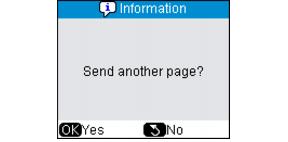
If you need to fax additional pages, place your original on the scanner glass or in the Automatic Document Feeder. Then press OK to continue. If you do not need to fax another page, press Back. Your document is faxed.
Note:
If the fax number is busy or there is some other connection problem, you see a redialing screen and the fax number is redialed after one minute. Wait for the redial, or press Redial/Pause to redial immediately.
If the fax number is busy or there is some other connection problem, you see a redialing screen and the fax number is redialed after one minute. Wait for the redial, or press Redial/Pause to redial immediately.
|
9.
|
When the fax session is complete, you see this screen again:
|