You can diagnose and solve most problems by checking the error messages on the LCD screen. If you can’t solve the problems by checking the messages, use the following table and try the recommended solution.
|
A printer error has occurred. See your documentation.
|
Paper may be blocking movement of the print head. Turn off the RX580, then lift up the scanner unit and remove any jammed paper or other foreign objects. Also, make sure you’ve removed all of the packing material. Then turn the RX580 back on. If you still see this error message, contact Epson as described in Where to Get Help.
|
|
A scanner error has occurred. See your documentation.
|
Turn off the RX580 and then turn it back on. If you still see this error message, contact Epson as described in Where to Get Help.
|
|
Waste ink pad in the printer is saturated. Contact your dealer to replace it.
|
|
|
Cannot recognize ink cartridges.
|
|
|
The document is too complex to print with Bluetooth.
|
|
|
Data error. The document cannot be printed.
|
See the documentation for the device transmitting the data. This error occurs when the transmitting device does not send data properly.
|
|
Cannot recognize the device.
|
Make sure you’ve inserted your memory card correctly. If you connected a USB storage device, make sure you’ve inserted the storage disk correctly.
|
|
Cannot recognize the memory card or disk.
|
Make sure you’ve inserted the memory card or storage disk correctly. If so, check to see whether there is a problem with the card or disk.
|
|
A problem occurred while formatting. Formatting cancelled.
|
Retry the procedure. If the error reoccurs, there may be a problem with your memory card or storage disk. Check to see whether there is a problem with the card or disk, then try again.
|
|
An error occurred while saving. Save cancelled.
|
|
|
Cannot create a folder on the memory card or disk. Operation cancelled.
|
|
|
Print head cleaning failed.
|
Try cleaning the print head again. If the error message reoccurs, contact Epson as described in Where to Get Help.
|
|
A problem occurred and backup was cancelled. Make a note of the error code and contact Epson as described in Where to Get Help.
|
You can run an operation check to determine whether a problem comes from the RX580 itself or some other source.
Before you run an operation check, make sure the CD/DVD tray is not inserted in the RX580, and make sure the front tray is in the paper (lower) position. Follow the instructions to reposition the front tray.
|
1.
|
Turn off both the RX580 and computer.
|
|
2.
|
|
4.
|
Press the
 On button to turn on the RX580. On button to turn on the RX580. |
|
5.
|
Press Setup.
|
|
6.
|
 or
or  to select
 |
7.
|
 or
or  to select
 |
8.
|
Press the
 Start button. Start button. |
A test page prints showing the RX580’s ROM version number, an ink counter code, and a nozzle check pattern. (If the pattern has gaps, you need to clean the print head.)
|
•
|
If the test page prints, the problem probably lies in your software settings, the cable, or your computer. It’s also possible that your software may not be installed correctly. Follow the instructions in Uninstalling Your Software, then see your Start Here sheet for instructions on reinstalling the software.
|
|
•
|
If the test page doesn’t print, you may have a problem with your RX580. Try the suggestions in Problems and Solutions. If nothing works, contact Epson as described in Where to Get Help.
|
|
9.
|
Turn off the RX580 after it prints the test page. Then reconnect the cable and turn on your RX580 and computer.
|
Tip:
It’s a good idea to check Epson’s support website periodically for free updates to your Epson Stylus Photo RX580 printing software.
With Windows, you can also click Start or , select Programs or All programs, select EPSON, and click EPSON Stylus Photo RX580 Series Driver Update. For scanner driver updates, click Start or
  , select Programs or All programs, select EPSON Scan, and click EPSON Stylus Photo RX580 Scanner Driver Update.
It’s a good idea to check Epson’s support website periodically for free updates to your Epson Stylus Photo RX580 printing software.
With Windows, you can also click Start or
, select Programs or All programs, select EPSON, and click EPSON Stylus Photo RX580 Series Driver Update. For scanner driver updates, click Start or , select Programs or All programs, select EPSON Scan, and click EPSON Stylus Photo RX580 Scanner Driver Update.|
•
|
The first time you install ink cartridges, the RX580 must charge its print head for about 2 minutes. Wait until charging finishes (when you see the message “Initialization is complete”) before you turn off the RX580, or it may charge improperly and use excess ink the next time you turn it on.
|
|
•
|
Turn off the RX580, then make sure the ink cartridges are inserted completely and the ink cartridge cover is closed completely. Also make sure no packing material remains in the RX580. Wait a moment, then turn the RX580 back on.
|
|
•
|
Make sure your RX580 is turned on and the cable is securely connected at both ends. Then carefully follow the installation instructions on the Start Here sheet. Also make sure your system meets the requirements listed in System Requirements.
|
|
•
|
Close your other programs, including any screen savers and virus protection software, and install the software again.
|
|
•
|
If you’re using Windows 2000 and you see an error message or your software doesn’t install correctly, you may not have software installation privileges. Contact your System Administrator.
|
|
•
|
If you’re using Windows, make sure your system was not upgraded from Windows 95. The USB Printer Device Driver may not install correctly.
|
|
•
|
If you are using a Macintosh and you do not see the name Stylus Photo RX580 in the Format for menu on the Page Setup screen, you may need to set up your RX580 in the Printer Setup Utility or Print Center. See the Start Here sheet for instructions.
|
|
•
|
Make sure the USB Controller is working properly in Device Manager. See your Windows help system for details. If it’s not working, contact your computer manufacturer.
|
|
•
|
If you’re printing over a network, see Setting Up Network Printing for instructions.
|
|
•
|
Run an operation check. If the test page prints, make sure your software is installed correctly. You may need to uninstall your software and then reinstall it. See Uninstalling Your Software for instructions.
|
|
•
|
If you’re trying to print a large image, your computer may not have enough memory. Try reducing the resolution of your image or printing the image at a smaller size. You may need to install more memory in your computer.
|
|
•
|
If you’re using Windows Me or 98SE, you may need to clear stalled print jobs from the Spool Manager. For instructions, see Using Epson Spool Manager in Windows 98SE or Me.
|
|
•
|
If you print continuously for an extended period, the paper may temporarily stop feeding or the print head carriage may pause for a while to prevent the printer mechanism from overheating and being damaged. If this happens, you can continue to print but Epson recommends that you stop and leave the RX580 on for about 30 minutes. After 30 minutes, turn the RX580 off and on and it should print at normal speed.
|
|
•
|
You may need to uninstall your software and then reinstall it. See Uninstalling Your Software for instructions.
|
|
•
|
If you’re using Windows, make sure your RX580 is selected. For Macintosh OS X, make sure your RX580 is selected in the Page Setup and Print windows.
|
|
•
|
The RX580 won’t operate properly if it’s tilted or at an angle. Place it on a flat, stable surface that extends beyond the RX580’s base in all directions.
|
|
•
|
You may need to uninstall your software and then reinstall it. See Uninstalling Your Software for instructions.
|
Your RX580 is performing routine maintenance.
You don’t see the  icon in the lower right corner of your screen (taskbar) in Windows.
icon in the lower right corner of your screen (taskbar) in Windows. , select
 Windows XP: Click Start, select Control Panel, then select Printers and Faxes (or Printers and Other Hardware and then Printers and Faxes).
|
2.
|
|
3.
|
Click the Maintenance tab.
|
|
4.
|
|
5.
|
Make sure your system meets the requirements listed in System Requirements. If you’re printing a high-resolution image, you need more than the minimum requirements listed. You may also need to:
|
•
|
Make sure the paper type selected in your printer settings is appropriate for the type of paper you’re using.
|
|
•
|
Select Grayscale in your printer settings if your document doesn’t include color.
|
|
•
|
For Windows, choose Draft as your Quality Option.
|
|
•
|
If you’re using Windows, you can also increase print speed by selecting certain settings in the Speed & Progress window:
|
|
1.
|
Right-click the
 icon in the lower right corner of your screen (taskbar) and select Printer Settings. icon in the lower right corner of your screen (taskbar) and select Printer Settings. |
Note:
If you don’t see the icon, see You don’t see the icon in the lower right corner of your screen (taskbar) in Windows.
If you don’t see the icon, see You don’t see the icon in the lower right corner of your screen (taskbar) in Windows.
|
2.
|
Click the Maintenance tab.
|
|
3.
|
Click the Speed & Progress button. The following screen appears:
|
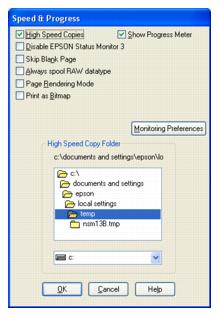
|
1.
|
 or
or  to select
 |
2.
|
 or
or  to select
 |
4.
|
Press each ink cartridge down (you may hear a cartridge click into place if it was incorrectly installed the first time).
|
|
6.
|
Press the OK button.
|

|
•
|
Select a higher Quality Option or Print Quality and turn off High Speed mode. See Printing in Windows, or Printing with Macintosh OS X.
|
|
•
|
|
•
|
Make sure you’re using genuine Epson ink cartridges and you use them within six months after you open the packages.
|
|
•
|
|
•
|
Align the print head.
|

|
•
|
Make sure your paper isn’t damp or curled, or loaded face-down (the printable side should be face-up).
|
|
•
|
|
•
|
When printing on special paper, check the instructions in the paper package. You may need to use an included support sheet or load your paper one sheet at a time.
|
|
•
|
The RX580 won’t operate properly if it’s tilted or at an angle. Place it on a flat, stable surface that extends beyond the RX580’s base in all directions.
|
|
•
|
Align the print head.
|
|
•
|
If ink smears on the back of a printout, clean the inside of the RX580.
|
|
•
|
If you are using double-sided paper and printing heavily saturated or dark images on the front side of the paper, you may notice that smudges or marks appear on the front when you print the second side. If one side of the paper will contain a lighter image or text, print that side first to eliminate marks or smudging.
|
|
•
|
Clear the High Speed check box in your printer settings.
|
|
•
|
Select Thick paper and envelopes in your printer settings:
|
|
1.
|
Right-click the
 icon in the lower right corner of your screen (taskbar) and select Printer Settings. icon in the lower right corner of your screen (taskbar) and select Printer Settings. |
Note:
If you don’t see the icon, see You don’t see the icon in the lower right corner of your screen (taskbar) in Windows. for instructions on making it appear.
If you don’t see the icon, see You don’t see the icon in the lower right corner of your screen (taskbar) in Windows. for instructions on making it appear.
|
2.
|
Click the Maintenance tab.
|
|
3.
|
|
4.
|
|
2.
|
|
3.
|
|
•
|
Clean the rollers. See Cleaning the Rollers for instructions. If you still have a problem, ink may have leaked inside the RX580, and you need to clean it. See Cleaning the RX580 for instructions.
|
|
•
|
You may need to uninstall your software and then reinstall it. See Uninstalling Your Software for instructions.
|

|
•
|
|
•
|
Make sure your paper isn’t damaged, old, dirty, or loaded face-down. If it is, reload a new stack of paper with the printable side up; it is usually brighter or whiter than the other side. For best results, use genuine Epson paper.
|
|
•
|
Clear the Grayscale setting in your printer settings (for Windows). Change the ink setting in your printer settings to Color (for Macintosh).
|
|
•
|
Try changing the Gamma setting; see Customizing Windows Print Settings or Customizing Mac OS X Print Settings.
|
|
•
|
After you print, the colors on your printout will take some time to set as the ink dries. During this time, the colors may look different than you expect. To reduce the drying time, avoid stacking your prints on top of each other.
|
|
•
|
Your printed colors can never exactly match your on-screen colors. However, you can use a color management system to get as close as possible. Try using the ICM (Windows) or ColorSync (Macintosh) setting.
|
|
•
|
|
•
|
Align the print head.
|
|
•
|
You may need to increase the image resolution or print it in a smaller size; see your software documentation.
|
|
•
|
|
•
|
Align the print head.
|
If you’re printing on glossy paper, prints may be scratched if not handled properly. Don’t place objects on top of your prints, and be careful not to scratch them with your fingernails. For best results, frame your prints under glass.
|
•
|
Wait until the green
 On light stops flashing and remains lit to indicate that the RX580 is ready to scan. On light stops flashing and remains lit to indicate that the RX580 is ready to scan. |
|
•
|
The RX580 may not scan properly when connected to the computer through more than one hub. Connect the RX580 directly to the computer’s USB port or through one hub only.
|
|
•
|
The RX580 may not scan properly when your computer is in standby mode (Windows) or sleep mode (Mac OS X). Restart Epson Scan and try scanning again.
|
|
•
|
The RX580 may not scan properly if you upgrade your operating system but do not reinstall Epson Scan. See Uninstalling Your Software for instructions on uninstalling and reinstalling it.
|
|
•
|
In Mac OS X Classic mode, the RX580 may not scan properly. Use the Mac OS X interface instead.
|
|
•
|
Make sure your RX580’s power cord is securely connected to the RX580 and a working electrical outlet, and the RX580’s green
 On light is turned on. On light is turned on. |
|
•
|
Make sure the interface cable is securely connected to the RX580 and your computer, and that the cable is not damaged or crimped.
|
|
•
|
The RX580 may not scan properly when connected to the computer through more than one USB hub. Connect the RX580 directly to the computer’s USB port or through one hub only.
|
|
•
|
Check to see if your computer system meets the requirements for the scanner interface you are using. See System Requirements for details.
|
|
•
|
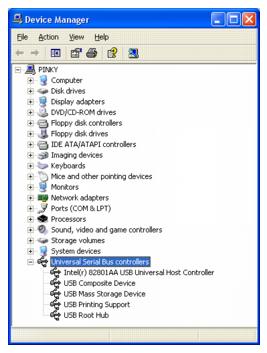
If you’re using Windows and your computer still has problems recognizing the scanner, follow the steps below to make sure your computer supports USB:
|
 , right-click
 Windows Vista: Select Device Manager from the list of Tasks. When you see the User Account Control screen, click Continue.
Windows Me or 98 SE: Click the Device Manager tab.
|
3.
|
Scroll down and click Universal Serial Bus controllers.
|
|
4.
|
Try scanning again. If your scanner still is not recognized, contact Epson as described in Where to Get Help.
|
Note:
Some Epson Scan settings may be unavailable or grayed out based on your product’s capabilities or the currently selected settings.
Some Epson Scan settings may be unavailable or grayed out based on your product’s capabilities or the currently selected settings.
|
•
|

|
•
|
Turn off your computer and RX580, then check the USB cable connection between them to make sure it is secure.
|
|
•
|
The RX580 may not scan properly when your computer is in standby mode (Windows), or sleep mode (Mac OS X). Restart Epson Scan and try scanning again.
|
|
•
|
The RX580 may not scan properly if you upgrade your operating system but do not reinstall Epson Scan. See Uninstalling Your Software for instructions on uninstalling and reinstalling it.
|
|
•
|
|
•
|
If you’re using Windows, in the Device Manager make sure your RX580’s name appears under Other devices or Imaging devices without a question (?) or an exclamation (!) mark. If the RX580 appears with one of these marks or as an Unknown device, uninstall your software (see Uninstalling Your Software for instructions). Then reinstall it by following the instructions in your Start Here sheet.
|
|
•
|
Make sure your computer has enough memory and meets the other system requirements for the software you are using. See your software and computer documentation for details.
|
|
•
|
If you’re using Windows, check whether your RX580 appears more than once in Device Manager. If so, do one of the following:
|
|
•
|
Windows Vista: Click
 , right-click Computer, and select Properties. Click Device Manager in the Tasks list. When you see the User Account Control screen, click Continue. Under Imaging devices, right-click your RX580 and select Uninstall. Disconnect the RX580, then reinstall Epson Scan by following the instructions on your Start Here sheet. , right-click Computer, and select Properties. Click Device Manager in the Tasks list. When you see the User Account Control screen, click Continue. Under Imaging devices, right-click your RX580 and select Uninstall. Disconnect the RX580, then reinstall Epson Scan by following the instructions on your Start Here sheet. |
|
•
|
Windows XP and 2000: Click Start if necessary, then right-click My Computer and select Properties. Click the Hardware tab, then click the Device Manager button. Under imaging devices, right-click the RX580 and select Uninstall. Disconnect the RX580, then reinstall Epson Scan by following the instructions on your Start Here sheet.
|
|
•
|
Windows 98 SE and Me: Right-click My Computer and click Properties. Click the Device Manager tab. Under Imaging Device, right-click the RX580 and select Remove. Disconect the RX580, then reinstall Epson Scan by following the instructions on your Start Here sheet.
|
|
•
|
The RX580 may not scan properly when your computer is in standby mode (Windows), or sleep mode (Mac OS X). Restart Epson Scan and try scanning again.
|
|
•
|
The RX580 may not scan properly if you upgrade your operating system but do not reinstall Epson Scan. See Uninstalling Your Software for instructions on uninstalling and reinstalling it.
|
Epson Scan may not be able to detect images, or may crop or group the images unexpectedly. This may happen if one or more of the following situations applies:
|
•
|
|
•
|
Epson Scan may not be able to detect images, or may crop or group the images unexpectedly. This may happen if your images are like the following:
|
•
|
|
•
|
Use normal preview (if available) and create marquees on the areas you want to scan. See Previewing and Adjusting the Scan Area for instructions.
|
|
•
|
Computers with USB 2.0 (high speed) ports can scan faster than those with USB 1.1 ports. If you are using a USB 2.0 port with your RX580, make sure it meets the system requirements. See System Requirements for details.
|
|
•
|
Move the document about 0.1 inch (2.5 mm) away from the horizontal and vertical edges of the document table to avoid cropping.
|
•
|
Make sure the document is placed on the RX580’s document table with the side to be scanned facing down. See Placing Originals for Scanning for instructions.
|
|
•
|
When scanning with the Black & White setting in Home or Professional Mode, change the Threshold setting. See Adjusting the Color and Other Image Settings for instructions.
|
The document table may be dusty or scratched. Clean the document table. See Cleaning the RX580 for details. If you still have the problem, contact Epson as described in Where to Get Help.
Make sure the document lies perfectly straight on the document table. Align the vertical and horizontal lines with the scales at the top and side of the document table.

|
•
|
Make sure the document lies flat on the document table. Also make sure your document is not wrinkled or warped.
|
|
•
|
Select Unsharp Mask Filter in Epson Scan’s Professional Mode window. See Adjusting the Color and Other Image Settings for instructions.
|
|
•
|
Adjust the Auto Exposure setting in Epson Scan’s Professional Mode window. See Adjusting the Color and Other Image Settings for instructions.
|
|
•
|
Select the Color tab in the Configuration window, then select Color Control and Continuous auto exposure, or click the Recommended Value button to return the Auto Exposure setting to the default. Click the Help button in the Configuration window for details.
|
|
•
|

If your document is very thick or warped at the edges, cover the edges with paper to block external light as you scan.

|
•
|
Change the Display Gamma setting to match your output device, such as a monitor or printer, in the Epson Scan Configuration window. Click the Help button in the Configuration window for details.
|
|
•
|
Adjust the Auto Exposure setting in Epson Scan’s Professional Mode window. See Adjusting the Color and Other Image Settings for instructions.
|
|
•
|
Select the Color tab in the Configuration window, then select Color Control and Continuous auto exposure, or click the Recommended Value button to return the Auto Exposure setting to the default. Click the Help button in the Configuration window for details.
|
|
•
|
Check the Brightness setting in Epson Scan’s Home or Professional Mode (see Adjusting the Color and Other Image Settings for instructions).
|
|
•
|
Adjust the brightness using the Histogram in Epson Scan’s Professional Mode. See Epson Scan Help for details.
|
If your original is printed on thin paper, images on the back may be visible to the RX580 and appear in your scanned image. Try scanning the original with a piece of black paper placed on the back of it. Also make sure the Document Type and Image Type settings are correct for your original. See Selecting Basic Settings for details.
A ripple pattern (called moiré) or cross-hatch pattern may appear in a scanned image of a printed document. It is caused by the halftone screen in your original.
|
Original image with
moiré pattern |
Descreening Filter applied
|
 |
 |
|
•
|
Select the Descreening Filter check box in Epson Scan’s Home or Professional Mode window. In Professional Mode, set the Screen Ruling of the Descreening Filter setting to an appropriate setting for your document and deselect the Unsharp Mask Filter setting. See Adjusting the Color and Other Image Settings for instructions.
|
|
•
|
Note:
You cannot remove ripple patterns when you are scanning using a resolution higher than 601 dpi.
You cannot remove ripple patterns when you are scanning using a resolution higher than 601 dpi.
|
•
|
Make sure the document lies perfectly straight on the document table. Align the vertical and horizontal lines with the scales at the top and side of the document table.
|
|
•
|
In Home Mode, select Black&White as the Image Type setting. In Professional Mode, select None for the B&W Option setting. Then try adjusting the Threshold setting.
|
|
•
|
|
•
|
Change the Image Type setting in Epson Scan’s Home or Professional Mode. See Selecting Basic Settings for instructions. Select different combinations of this setting and the others mentioned below.
|
|
•
|
Change the Display Gamma setting to match your output device, such as a monitor or printer, in the Epson Scan Configuration window. Click the Help button in the Configuration window for details.
|
|
•
|
Adjust the Auto Exposure setting in Epson Scan’s Professional Mode. Also try selecting a different Tone Correction setting. See Adjusting the Color and Other Image Settings for instructions.
|
|
•
|
Select the Color tab in the Configuration window, then select Color Control and Continuous auto exposure, or click the Recommended Value button to return the Auto Exposure setting to the default. Click the Help button in the Configuration window for details.
|
|
•
|
Check the color matching and color management capabilities of your computer, display adapter, and software. Some computers can change the palette of colors on your screen. See your software and hardware manuals for details.
|
|
•
|
Use the color management system for your computer: ICM for Windows or ColorSync for Macintosh. With Windows, add a color profile that matches your monitor to improve on-screen color matching. (Exact color matching is very difficult. Check your software and monitor documentation for information on color matching and calibration.)
|
|
•
|
Printed colors can never exactly match the colors on your monitor because printers and monitors use different color systems: monitors use RGB (red, green, and blue) and printers typically use CMYK (cyan, magenta, yellow, and black).
|
|
•
|
Create a marquee or adjust the existing marquee to select the area you want to scan. See Adjusting the Scan Area (Marquee) for instructions.
|
|
•
|
In the Configuration window, adjust the thumbnail cropping area using the Thumbnail Cropping Area slide. Click the Help button in the Configuration window for details.
|
|
•
|
|
•
|
If the paper doesn’t eject fully, press the
 Stop/Clear Settings button to eject the paper, then lift up the scanner unit and remove the paper. Also, you may need to select the correct paper size in your application or printer settings. Stop/Clear Settings button to eject the paper, then lift up the scanner unit and remove the paper. Also, you may need to select the correct paper size in your application or printer settings. |
|
•
|
If paper doesn’t feed, remove it from the sheet feeder. Reload it against the right edge, behind the tab, then slide the left edge guide against the paper, but not too tightly.
|
|
•
|
If multiple pages feed at once, remove the paper from the sheet feeder, fan the edges to separate the sheets, then reload it.
|
|
•
|
If paper jams and an error message appears on the LCD screen, press the
 Start button to eject the jammed paper. If the error doesn’t clear, turn the RX580 off and lift up the scanner unit, then remove all the paper inside, including any torn pieces. Then close the scanner unit, turn the RX580 on, reload the paper, and press the Start button to eject the jammed paper. If the error doesn’t clear, turn the RX580 off and lift up the scanner unit, then remove all the paper inside, including any torn pieces. Then close the scanner unit, turn the RX580 on, reload the paper, and press the  Start button to resume printing. Start button to resume printing. |
|
•
|
Heavily saturated prints may curl, causing a paper jam when printing on both sides of the paper.
|
|
•
|
Use new, smooth, high-quality paper, loaded printable side up. Make sure the paper is not curled, creased, wrinkled, too thin, or too old.
|
|
•
|
If you’re using special paper, make sure you’ve followed any loading instructions that came with the paper. Also, make sure the number of sheets in the paper stack does not exceed the limit specified for the paper. For more information, see Special Papers.
|
|
•
|
The RX580 won’t operate properly if it’s tilted or at an angle. Place it on a flat, stable surface that extends beyond the RX580’s base in all directions.
|
Adjust the Print position. For more information, see Adjusting the Print Position (Windows) or Adjusting the Print Position (Macintosh).
|
•
|
Handle the disc carefully and allow the ink to dry for at least 24 hours before playing the disc or inserting it in a drive.
|
|
•
|
Make sure you gently insert the CD/DVD tray along the base of the front tray until the arrow marks on the CD/DVD tray and the front tray match each other. Make sure both sides of the CD/DVD tray slide underneath the brackets on the front tray. For more information, see Inserting a CD or DVD.
|
•
|
Turn off the Mirror Image setting in your printer settings:
|
|
1.
|
Right-click the
 icon in the lower right corner of your screen (taskbar) and select Printer Settings. icon in the lower right corner of your screen (taskbar) and select Printer Settings. |
Note:
If you don’t see the icon, see You don’t see the icon in the lower right corner of your screen (taskbar) in Windows. for instructions on making it appear.
If you don’t see the icon, see You don’t see the icon in the lower right corner of your screen (taskbar) in Windows. for instructions on making it appear.
|
2.
|
Click the Page Layout tab.
|
|
3.
|
|
2.
|
|
3.
|
Click Advanced.
|
|
4.
|
|
•
|
If you’re using Windows, make sure your RX580 is selected. For Macintosh OS X, make sure your RX580 is selected in both the Page Setup and Print windows.
|
|
1.
|
Right-click the
 icon in the lower right corner of your screen (taskbar) and select Printer Settings. icon in the lower right corner of your screen (taskbar) and select Printer Settings. |
Note:
If you don’t see the icon, see You don’t see the icon in the lower right corner of your screen (taskbar) in Windows. for instructions on making it appear.
If you don’t see the icon, see You don’t see the icon in the lower right corner of your screen (taskbar) in Windows. for instructions on making it appear.
|
2.
|
Click the Maintenance tab.
|
|
3.
|
|
4.
|
|
•
|
The RX580 won’t operate properly if it’s tilted or at an angle. Place it on a flat, stable surface that extends beyond the RX580’s base in all directions.
|
|
•
|
Make sure the paper you loaded matches the paper size and paper type settings you selected in your printer software. For instructions, see Printing in Windows or Printing with Macintosh OS X.
|
|
•
|
If you’re using Mac OS X, make sure you choose your RX580 in both the Page Setup window and the Print windows.
|
|
•
|
Use the Print Preview option in your printer software to check your margins before you print.
|
|
•
|
Make sure the paper is positioned all the way to the right of the sheet feeder. Slide the left edge guide against the paper.
|
|
•
|
|
•
|
Make sure that the Copies option in your RX580 or application software is not set for multiple copies.
|
•
|
Make sure the USB cable is securely connected and meets the system requirements. Then try printing again.
|
|
•
|
If you’re using Windows, make sure your RX580 is selected. For Macintosh OS X, make sure your RX580 is selected in both the Page Setup and Print windows.
|
|
•
|
If you’re using a switch box or USB hub with your RX580, connect the RX580 directly to your computer instead.
|
|
•
|
If you’re using Windows Me or 98SE, you may need to clear stalled print jobs from the Spool Manager. For instructions, see Using Epson Spool Manager in Windows 98SE or Me.
|
|
•
|
|
•
|
Your images may not match the width/height proportions of the paper size or layout you’re using, and may be cropped to fit.
|
You may need to uninstall and then reinstall your printer driver, scanner software, and utilities. For example, this might be necessary when you upgrade your operating system. You don’t need to uninstall Epson Print CD, PhotoImpression, or your on-screen User’s Guide.
|
•
|
|
2.
|
 , and select
 |
3.
|
With Windows Vista, click Continue, then go to step 4.
|
4.
|
In the next window, select EPSON Stylus Photo RX580 Series, and click OK. Then follow the on-screen instructions.
|
|
5.
|
Open the Windows Control Panel and select Uninstall a program under Programs (Windows Vista) or double-click Add or Remove Programs (other Windows versions).
|
|
6.
|
Click EPSON Scan in the list of currently installed programs and click Uninstall/Change (Windows Vista), Change/Remove (Windows XP or 2000), or Add/Remove (Windows 98SE or Me).
|
In some cases, a message may appear to prompt you to restart the computer. If so, make sure Yes, I want to restart my computer now is selected and click Finish.
|
9.
|
Restart your computer, then see the Start Here sheet to reinstall your software.
|
|
3.
|
Open the Epson CD-ROM desktop icon.
|
|
4.
|
|
5.
|
Double-click the Installer icon.
|
|
6.
|
When the Installer window appears, select Uninstall from the pop-up menu in the upper left and click Uninstall.
|
Note:
If the name of your RX580 remains in the Print Center or Printer Setup Utility, select it from Printer List and click Delete.
If the name of your RX580 remains in the Print Center or Printer Setup Utility, select it from Printer List and click Delete.
|
9.
|
|
10.
|
|
11.
|
Double-click the EPSON Scan Installer icon.
|
|
12.
|
When the EPSON Scan Installer window appears, select Uninstall from the pop-up menu in the upper left and click Uninstall.
|
|
15.
|
Restart your Macintosh, then see the Start Here sheet to reinstall your software.
|