|
1.
|
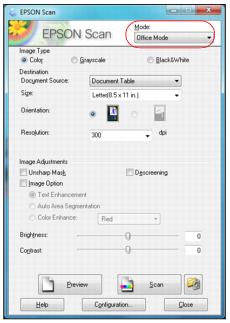
Start Epson Scan and select Office Mode as the Mode setting.
|
|
2.
|
|
3.
|
Select Document Table (scanner glass) as the Document Source setting.
|
|
4.
|
|
5.
|
Select the resolution at which you want to scan the image.
|
|
6.
|
Click the Preview button to preview your image. If desired, you can draw a marquee (or box) around the area you want to scan in the Preview window.
|

|
7.
|
You can adjust exposure, brightness, and other image quality settings before you scan to improve your results. Before making adjustments, be sure to click the image or marquee for the area you want to adjust.
|
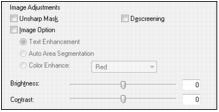
Click the Help button for more information about these settings.
|
8.
|
Click Scan to scan and save your image. When done, your scanned image file appears in Windows Explorer or Macintosh Finder.
|
|
9.
|
Now you can view and print your scanned image, attach it to an e-mail, or use it however you like.
|