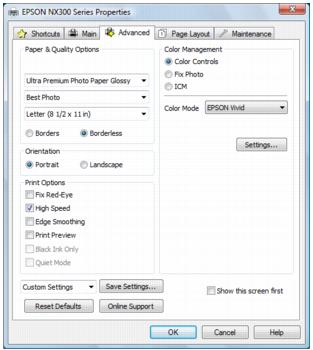
Click the Advanced tab on the top of the printer settings window to select Advanced options.
|
1.
|
Select the paper type setting that matches the paper you loaded.
|
|
•
|
Fast Economy: for the fastest printing with draft print quality
|
|
•
|
Economy: for fast printing with reduced print quality
|
|
•
|
Normal: for everyday text and image printing
|
|
•
|
Fine: for text and graphics with good print quality and speed
|
|
•
|
Super Fine: for text and graphics with high print quality and speed
|
|
•
|
Photo: for photos and graphics with good print quality and speed
|
|
•
|
Best Photo: for photos and graphics with high print quality and speed
|
|
•
|
You can load paper in these sizes and select the size in the printer software. (Wider papers are for use only when reducing large images with the Reduce/Enlarge Document option.) User Defined and Custom options are also available so you can create a custom size.
Envelope #10 (4 1/8 × 9 1/2 inches)
|
4.
|
If you’re printing borderless photos, select Borderless. For documents or photos with borders, select Borders.
|
|
5.
|
Choose Portrait or Landscape orientation for your document or photo. (Choose Landscape for envelopes.)
|
|
•
|
Select Print Options
|
|
•
|
Fix Red Eye: removes the red eye from your photos.
|
|
•
|
High Speed: deselect, if desired, to improve print quality (printing speed may be slower).
|
|
•
|
Edge Smoothing: prints sharper edges on low-resolution images, such as bars in a graph.
|
|
•
|
Print Preview: lets you preview how your document or photo will look when printed.
|
|
•
|
Black Ink Only: for printing text and graphics in shades of gray (not recommended for printing black-and-white photos). Some color ink will still be used for print head maintenance.
|
|
•
|
Quiet Mode: reduces the print speed slightly for quieter operation.
|
|
•
|
Select Color Management options
|
|
•
|
Color Controls: let you select a Color Mode and adjust Brightness, Contrast, Saturation, and individual Cyan, Magenta, and Yellow color tones.
|
Color Mode: selects the main method of printing colors for photos and graphics; EPSON Vivid or AdobeRGB.
|
•
|
Fix Photo: automatically analyzes your photos and, if necessary, adjusts the brightness, contrast, and saturation.
|
Note:
Fix Photo uses a sophisticated face recognition technology to optimize photos that include faces. For this to work, both eyes and the nose must be visible in the subject’s face. If your photo includes a face with an intentional color cast, such as a statue, you may want to turn off Fix Photo to retain the special color effects.
Fix Photo uses a sophisticated face recognition technology to optimize photos that include faces. For this to work, both eyes and the nose must be visible in the subject’s face. If your photo includes a face with an intentional color cast, such as a statue, you may want to turn off Fix Photo to retain the special color effects.
|
•
|
ICM: lets you select No Color Adjustment to use only the color adjustments provided by your printing program.
|
|
•
|
Save all your selected settings for later use (click Save Setting and name the settings); to use saved settings later, select them from the Custom Settings list
|
|
•
|
Return to the default settings (click Reset Defaults)
|