You can copy a photo onto 4 × 6-inch, 5 × 7-inch, or letter-size Epson photo paper for instant photo reprints.
|
1.
|
Press the
 On button to turn on the NX300/305 Series. On button to turn on the NX300/305 Series. |
|
2.
|
Load Epson photo paper in the sheet feeder.
|
|
3.
|
Place one or two photos on the scanner glass. Place them at least 1/4 inch (5 mm) apart.
|
|
4.
|
Press the Copy/Fax button to enter Copy mode.
|
|
5.
|
To print more than 1 copy, press
 or or  to select the number of copies (up to 99), or use the numeric keypad to enter the number. to select the number of copies (up to 99), or use the numeric keypad to enter the number. |
|
6.
|
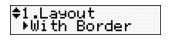
Press or to select With Border to leave a small margin around the image, or Borderless to expand the image all the way to the edge of the paper (slight cropping may occur). Then press OK.
or to select With Border to leave a small margin around the image, or Borderless to expand the image all the way to the edge of the paper (slight cropping may occur). Then press OK.
Note:
To adjust the amount of image expansion when printing borderless photos, select Expansion and choose Standard, Medium, or Minimum. You may see white borders on your printed photo if you use the Minimum setting.
To adjust the amount of image expansion when printing borderless photos, select Expansion and choose Standard, Medium, or Minimum. You may see white borders on your printed photo if you use the Minimum setting.
|
7.
|
|
•
|
To change the paper size, select Paper Size and choose the size of paper you loaded.
|
|
•
|
To change the paper type, select Paper Type and choose the type of paper you loaded.
|
|
•
|
To adjust the darkness or lightness of the copy, select Copy Density and choose a higher (darker) or lower (lighter) setting.
|
|
•
|
To adjust the copy size, select Reduce/Enlarge and choose either Actual, Custom (to select a percentage using
or , or enter it on the numeric keypad), or Auto Fit Page (to automatically size the image to fit your paper). |
Note:
Not all Paper Type, Paper Size, Layout, and Quality settings may be available depending on the options you choose.
Not all Paper Type, Paper Size, Layout, and Quality settings may be available depending on the options you choose.
|
8.
|
Press the
 Color button to begin copying. Color button to begin copying. |
To cancel copying, press  Stop/Clear Settings.
Stop/Clear Settings.