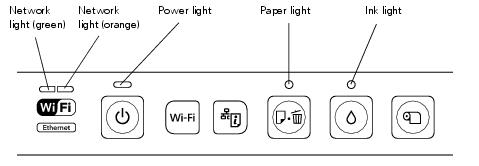
Check the status of the printer lights to solve the most common problems. If an error occurs, follow the instructions in the table below.
 paper on paper on |
Paper may be out or multiple sheets may have fed into the sheet feeder. Load paper, if necessary, and press the
paper button. |
|
If you’re printing on thick media, the media is not inserted. Insert the thick media and press the
paper button. |
|
 ink on ink on |
An ink cartridge is expended or not installed correctly, or is not compatible with the printer. Replace or reinstall the cartridge.
|
|
ink flashing |
|
|
paper flashing ink flashing fast |
The front manual feed slot cover is open while printing from paper loaded in the sheet feeder. To print on thick media or a CD/DVD, remove the loaded paper or close the front manual feed slot cover to print on paper loaded in the sheet feeder. Press the
paper button to clear the error. |
 power on paper and ink flashing or flashing alternately power on paper and ink flashing or flashing alternately |
An unsupported device is connected to the
 external USB port. Connect only a PictBridge compatible digital camera to the external USB port. Connect only a PictBridge compatible digital camera to the  external USB port. external USB port. |
|
power and paper flashing |
Paper may have jammed in the sheet feeder, rear manual feed slot, front manual feed slot, or roll paper slot.
Sheet feeder or rear manual feed slot: Press the
paper button to eject any jammed sheets, then open the printer cover and remove any paper jammed inside. Reload paper and press the paper button again to clear the error.Front manual feed slot: Gently pull out the paper and press the
paper button to clear the error. |
|
The CD/DVD tray may be unable to eject. Gently pull out the CD/DVD tray and press the
paper button. Reload the tray. |
|
|
The printer cover may be open. Close the printer cover to continue. (Leaving the printer cover open stops or prevents printing.)
|
|
|
power off paper and ink flashing alternately |
Parts inside the printer are at the end of their service life or an unknown error has occurred. Contact Epson for help.
|
|
power off paper and ink flashing fast |
The print head is obstructed by paper or other foreign material. Turn off the printer, remove any obstructions, and turn it back on. If the error persists, contact Epson.
|