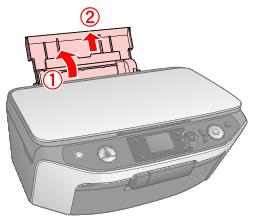
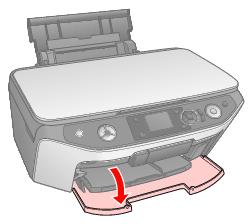
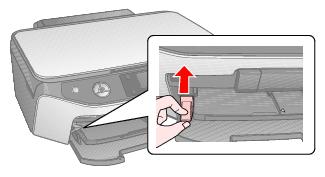
Make sure the front tray is in the paper (lower) position. If it is not, lift up the tray lever to reposition the front tray to the paper position.
Caution:
Before you move the tray lever, make sure no paper or other objects are on the front tray and the front tray is not extended.
Do not touch the front tray when you move the tray lever.
Do not move the tray lever while the RX580 is printing.
Before you move the tray lever, make sure no paper or other objects are on the front tray and the front tray is not extended.
Do not touch the front tray when you move the tray lever.
Do not move the tray lever while the RX580 is printing.
Note:
If the tray is in the CD/DVD (upper) position when you turn the RX580 on, the LCD screen will display an error message. Move the tray to the lower position to clear the error.
If the tray is in the CD/DVD (upper) position when you turn the RX580 on, the LCD screen will display an error message. Move the tray to the lower position to clear the error.
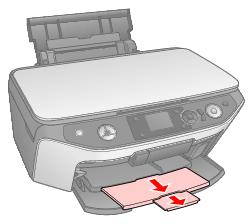
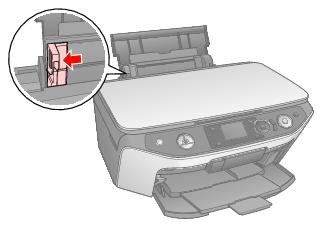

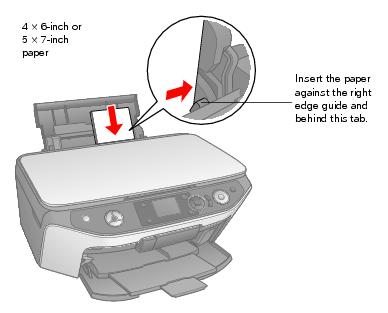
You can load up to 120 sheets of plain paper or up to 20 sheets of photo paper. (See Special Papers for capacity guidelines on other paper types.)
Note:
The type of paper you choose affects the way your printout looks, so be sure to select the correct paper for your job. If you are just printing a rough draft of an image, plain paper is fine. However, for the best results, you’ll want to use one of Epson’s special ink jet papers designed for your RX580. For example, your photos will look great printed on Epson Ultra Premium Photo Paper Glossy. See Special Papers for more information.
If you’re inserting a stack of paper, fan the stack and then tap it on a flat surface to even the edges before you insert it.
The type of paper you choose affects the way your printout looks, so be sure to select the correct paper for your job. If you are just printing a rough draft of an image, plain paper is fine. However, for the best results, you’ll want to use one of Epson’s special ink jet papers designed for your RX580. For example, your photos will look great printed on Epson Ultra Premium Photo Paper Glossy. See Special Papers for more information.
If you’re inserting a stack of paper, fan the stack and then tap it on a flat surface to even the edges before you insert it.
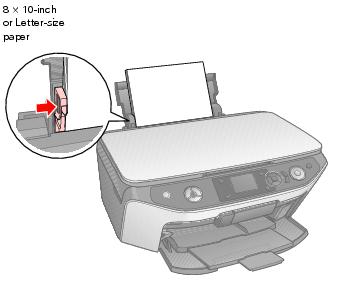
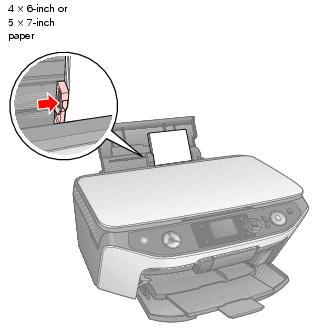
|
•
|
Don’t load paper above the arrow on the left edge guide. Make sure the paper is under the tabs on the left and right edge guides.
|