You can scan a photo or document and save it on a memory card or USB storage device in JPEG or PDF format.
Note:
Disconnect the Epson Stylus Photo RX595 Series from your computer by unplugging the USB cable on the back before scanning to a memory card or USB storage device.
Disconnect the Epson Stylus Photo RX595 Series from your computer by unplugging the USB cable on the back before scanning to a memory card or USB storage device.
|
1.
|
Insert a memory card in one of the memory card slots, or connect your USB storage device to the EXT. I/F port.
|
|
2.
|
|
3.
|
Press the Memory Card button.
|
|
4.
|

 to select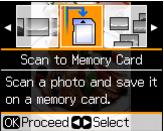
|
•
|
|
•
|
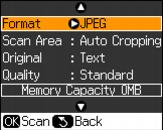
Select Scan Area and choose Auto Cropping (for most photos) or Max. Area (for photos or documents with light edges).
|
|
•
|
|
•
|
|
6.
|
Press OK to scan and save your photo or document on the memory card or USB storage device in subfolders within the EPSCAN folder.
|