You can copy a photo onto 4 × 6-inch, 5 × 7-inch, or letter-size Epson special paper (various types available) for instant photo reprints.
|
1.
|
Press the
 On button to turn on the WorkForce 500 Series. On button to turn on the WorkForce 500 Series. |
|
2.
|
Place your original photo on the scanner glass.
|
|
3.
|
Load Epson photo paper in the sheet feeder.
|
|
4.
|
Press the Copy button.
|
|
5.
|
|
6.
|
 or
or  to select
 |
7.
|
 , then press
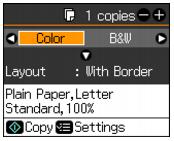
 Select With Border to leave a small margin around the image or select Borderless to expand the image all the way to the edge of the paper (slight cropping may occur).
|
8.
|
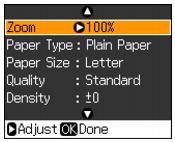
To change any of the print settings displayed on the screen, press Menu and select your settings.
|
|
•
|
To adjust the copy size, select Zoom and choose either Actual (to select a percentage using + or –) or Auto Fit Page (to automatically size the image to fit your paper). This option is not available if you are copying from the Automatic Document Feeder.
|
|
•
|
To change the paper type, select Paper Type and choose the type of paper you loaded.
|
|
•
|
To change the paper size, select Paper Size and choose the size of paper you loaded.
|
|
•
|
To adjust the darkness or lightness of the copy, select Density and choose a higher (darker) or lower (lighter) setting.
|
|
•
|
To adjust the amount of image expansion when printing borderless photos, select Expansion and choose Standard, Min, or Mid.
|
|
10.
|
Press
 Start to begin copying. Start to begin copying. |
To cancel copying, press  Stop/Clear Settings.
Stop/Clear Settings.