|
•
|
If paper doesn’t feed, remove it from the sheet feeder. Fan it, then stack and align the edges. Reload it against the right side, behind the tab, then squeeze the left edge guide and slide it against the paper. Make sure the paper is not above the arrow mark inside the left edge guide. Make sure the paper support extensions are fully extended.
|
|
•
|
If multiple pages feed at once, remove the paper from the sheet feeder, fan the edges to separate the sheets, then reload it.
|
|
•
|
Load only up to the recommended number of sheets. If you’re printing on both sides of the paper, try loading fewer sheets.
|
|
•
|
Use new, smooth, high-quality paper, that is not curled, creased, old, or too thin. Make sure to load it printable side up.
|
|
•
|
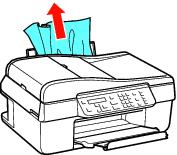
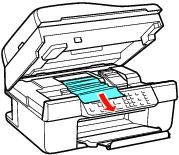
If the paper doesn’t eject fully, you may have set the wrong paper size. Press the
 Color button, then open the scanner and remove the paper. Select the correct paper size when you reprint. Color button, then open the scanner and remove the paper. Select the correct paper size when you reprint. |
|
3.
|
If you’re loading legal-size paper, insert only 10 sheets at a time to prevent paper feeding problems.
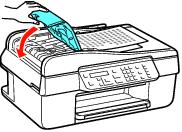
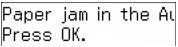
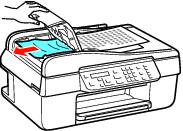
If the LCD screen indicates that a paper jam has occurred, press OK and follow the instructions below:
Caution:
Open the Automatic Document Feeder cover before removing paper, or you could damage the mechanism.
Open the Automatic Document Feeder cover before removing paper, or you could damage the mechanism.
|
2.
|
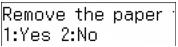
The message on the LCD screen asks if paper has been removed. Press 1 to clear the message.
|
|
4.
|
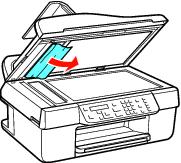
Close the Automatic Document Feeder cover and reload the paper. Make sure the corners of the paper are not bent, folded, or curled up.
|