Starting a Scan from a Scanner Button

You can scan using a button on your scanner. This automatically starts a default scanning program, but you can reassign the buttons to different programs.

Your product automatically selects suitable default scan settings, but you can view or change them as necessary.

  1. Make sure you installed the scanner software and connected the scanner to your computer or network.
  2. Place the original on your scanner.
  3. Press one of the following buttons on your scanner:
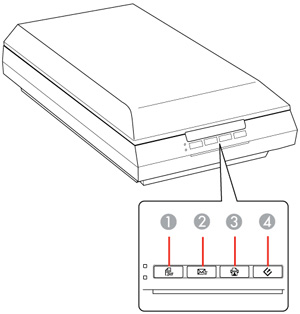

    1 The  PDF button starts the Scan to PDF utility so you can scan multiple originals directly to a PDF file
    2 The  email button starts Epson Scan, scans your original to a JPG file, and opens your email program so you can send it as an attachment
    3 The  copy button starts the Copy Utility so you can scan your original and print it on a printer connected to your computer
    4 The  start button starts Epson Scan so you can select your scan mode, settings, and scanned file destination on your computer
    The designated scan program starts.
Related tasks
Scanning to a PDF File Using a Scanner Button
Using the Scanner as a Copier - Copy Utility
Scanning Directly to an Email