You can load
one sheet of card stock or other thick media, one sheet of paper,
or one envelope in the rear paper feed slot.
Note: Paper that
is too stiff may not load correctly. Check the paper
specifications.
- Do one of the following: You see a message on the LCD screen, then you see instructions for loading paper.
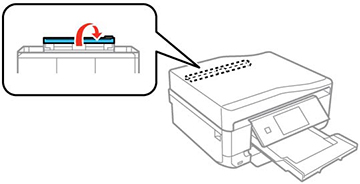
- Flip open the rear paper feed slot cover.
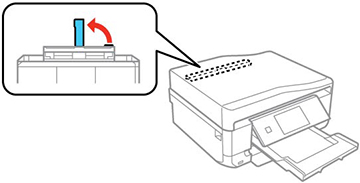
- Slide out the paper support.
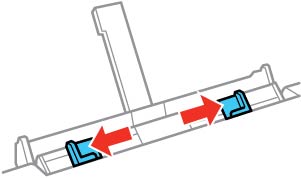
- Slide the edge guides outward.
- Do one
of the following:
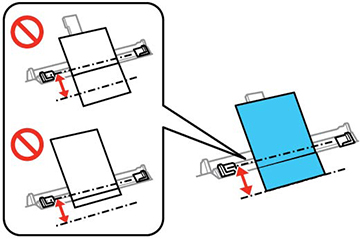
- Load a single sheet of paper or thick media, printable side up and short edge first, in the center of the rear paper feed slot. Push it down approximately 2 inches (5 cm) into the slot.
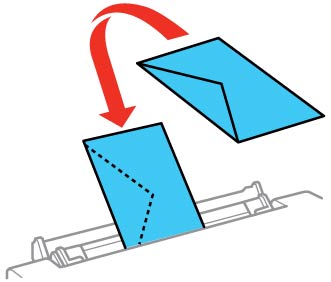
- Load an envelope, short edge first with the flap facing down, in the center of the rear paper feed slot. Push it down approximately 2 inches (5 cm) into the slot.
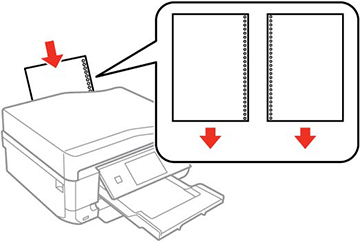
- Load a sheet of loose-leaf or other paper with holes as shown, approximately 2 inches (5 cm) into the slot.
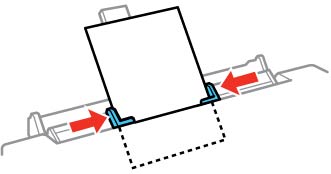
- Slide the edge guides against the paper or envelope, but not too tightly.
- When you
are ready to print, press the
 start button.
Note: The output tray opens automatically when you print. Leave enough space in front of the product for the paper to be fully ejected.
start button.
Note: The output tray opens automatically when you print. Leave enough space in front of the product for the paper to be fully ejected.