- When the Media Size Check setting is turned on, your product automatically detects the left and right edges of the media within 0.2 inch (5 mm), as long as the media holding plates are attached correctly.
- When the
Media Size Check setting is turned
off, your product uses the longest scale on the after heater label
shown here as the standard position for the right edge of the
media. The left edge of the media is determined to be
64 inches (1626 mm) from the standard position for the
right edge, no matter the width of the loaded media. The printable
area ranges for the media are described in the table here.
Note: If you turn off the Media Size Check setting, printing may occur outside the edges of your media, causing ink to stain the product. Make sure your print data width does not exceed the loaded media width. When you load media to the left of the right side reference position, adjust the Print Start Position setting on the product control panel to match the position where the media is loaded.
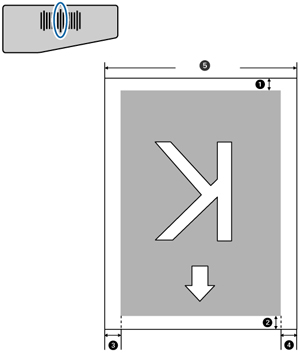
| 1 |
Bottom margin1
You can configure this margin in the RIP software from 0.2 inch (5 mm) to 0.7 inch (17 mm); if you set it below 0.2 inch (5 mm) or above 0.7 inch (17 mm), it is changed to 0.2 inch (5 mm) and 0.7 inch (17 mm) respectively to maintain feeding accuracy. |
| 2 |
Top margin1
You can configure this margin in the RIP software to 0.2 inch (5 mm) and above; if you set it below 0.2 inch (5 mm), it is changed to 0.2 inch (5 mm) to maintain feeding accuracy. The margin differs depending on how far the media was pulled during loading. |
| 3 |
Left margin2, 3
You select this margin as the Side Margin(Left) setting on the product control panel. The default setting is 0.2 inch (5 mm), but you can select from 0.12 inch (3 mm) to 0.98 inch (25 mm). |
| 4 |
Right margin2, 3
You select this margin as the total of the values for the Print Start Position (default setting is 0) and Side Margin(Right) (default setting is 0.2 inch [5 mm]) settings on the product control panel. You can select from 0.12 inch (3 mm) to 32.5 inches (825 mm). |
| 5 |
Media width
11.8 to 64 inches (300 mm to 1626 mm); if Media Size Check is off, the product assumes this is 64 inches (1626 mm) regardless of the actual width. |
1 The configured margin and the actual print results may differ depending on the RIP software you use. Contact the RIP manufacturer for more information.
2 Depending on the RIP software, you may be able to use it to set these margins. Contact the RIP manufacturer for more information.
3 When using the media holding plates, leave margins of at least 0.4 inch (10 mm) to avoid printing over the plates. If the total of the print data width and the left and right margins exceeds the printable area, a portion of the print data will not print.