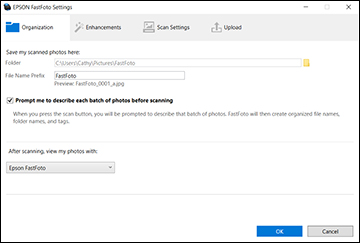
Organization tab
- Save my scanned photos here
- Choose a default folder to save your scanned photos. If you do
not specify a folder during a scan, your photos will be saved to
this location.
Note: On a Mac, you can choose to save your photos to the Photos application and to a folder. Select the Save my files to Photos and to a folder option to create an album in the Photos application in addition to saving your files to the chosen folder.
- Prompt me to describe each batch of photos before scanning
- Select this checkbox to be prompted during scanning to add a subject and date to your photos and create a subfolder. If you deselect the checkbox, FastFoto uses the default file name prefix and folder.
- After scanning, open my photos with
- Choose a program from this list to view your scanned photos after scanning them with FastFoto.
Enhancements tab
- Auto Enhance
- Automatically adjusts the brightness, contrast, and saturation of your photos.
- Remove Red Eye
- Automatically reduces the red-eye effect in your photos.
- Restore Faded Colors
- Restores the colors in faded photos automatically.
- Apply these enhancements
- Choose whether to apply the enhancements to the original photos or create a separate enhanced copy with "_a" appended to the filename.
Scan Settings tab
- Scan my photos at this resolution
- Select the resolution at which to scan your photos.
- Scan the back of my photos with Epson single-step technology
- Select whether to scan both sides of your photos when FastFoto detects writing or printing on the back of them. Adjust the slider to determine the detection's sensitivity level.
- Reduce lines and streaks
- Select whether to reduce the appearance of lines and streaks in your photos. Enabling this setting may slightly crop your photos.
Upload tab
- Manually select photos to upload after scanning
- Lets you upload photos after scanning them by selecting them individually or as a group.
- Automatically upload all photos
- Lets you upload photos to a cloud service immediately after scanning them.
- Which photos would you like to upload
- Select the types of photos you want to upload automatically.
(This applies only to automatic uploads.)
Note: You must select Scan the back of my photos as well before you can select Back of my photos.