You can
adjust the time period before your product enters sleep mode and
turns off the LCD screen.
Note: This
setting can be locked by an administrator. If you cannot access or
change this setting, contact your administrator for
assistance.
- Press the
 home button, if
necessary.
home button, if
necessary. - Select Settings.
- Select General Settings. You see a screen like this:
- Select Basic Settings.
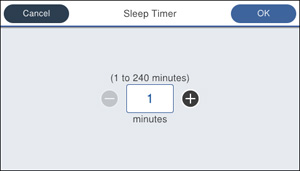
- Select Sleep Timer. Enter the administrator password, if necessary. You see a screen like this:
- Do one of the following:
- Select OK.
- Select Wake from Sleep.
- Select Wake with LCD Screen Touch.
- Do one of the
following:
- Select On to wake the printer from sleep mode by tapping the LCD touchscreen or by pressing a button on the control panel.
- Select Off to only wake the printer from sleep mode by pressing a button on the control panel. This prevents unintentional operations due to objects bumping the LCD touchscreen.