Select the print settings you want to use when printing a TIFF from a USB device.
Note: Not all
options or settings may be available, depending on the file
format.
Basic Settings
| Print settings | Available options | Description |
|---|---|---|
| Recent to old or Old to recent | — | Change the order of the photos displayed on the LCD screen. |
| Paper Setting | Various paper size and type settings | Select the paper source that you want to use. |
| Layout | 1-up | Print one photo per page. |
| 20-up | Print 20 photos per page. | |
| Index | Print numbered photo thumbnails with date information. | |
| Fit Frame | On | Automatically crops the photo to fit into the selected photo layout. |
| Off | Turns off automatic cropping. | |
| B&W | — | Prints a color photo in black and white. |
| Auto | — | Automatically detects whether the photo is in color or black and white. |
Advanced settings
| Print settings | Available options | Description |
|---|---|---|
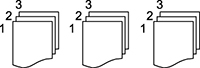
| Finishing | Collate (Page Order) | Select to print multiple copies of a multi-page document in ordered sets. |
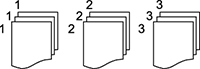
| Group (Same Pages) | Select to print multiple copies of a multi-page document in unordered groups. | |
| Eject Paper | Select Shift Sort* to eject offset printouts for each set of copies. | |
| Staple* | Select the staple location. | |
| Quality | Standard | Provides good quality for most prints. |
| Best | Provides the highest quality for special prints. | |
| Print Order | — | Select the printing order for multi-page documents. |
| Date | Various date formats | Prints the date the photo was taken on the photo in the format you select. |
* Displayed when the optional finisher unit is installed.