If you
experience problems with your watch, you may need to update the
firmware using the Epson View app.
Before updating the firmware, you may also want to backup your workout and activity data to your smartphone using the Epson View app; the firmware update may reset the data and settings stored in your watch's memory.
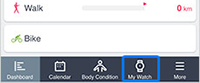
- Select My Watch at the bottom of the app screen.
- Do one of the following:
- AC adapter: Connect the USB charging clip to the USB port on
the optional AC adapter and plug the AC adapter into an electrical
outlet.
Caution:Only use the optional AC adapter that is compatible with your product to charge your watch, or the watch may not charge or operate correctly.
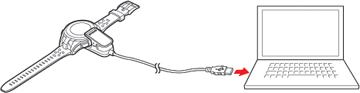
- Computer: Connect the USB charging clip to a USB port on your
computer that is capable of charging external devices.
Note: USB charging from a computer port may not work with all computers. Do not connect the USB charging clip to a USB hub or other intermediate device.
- AC adapter: Connect the USB charging clip to the USB port on
the optional AC adapter and plug the AC adapter into an electrical
outlet.