|
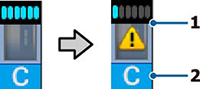
4 |
Media information
Displays, from left to right, the selected media (0 indicates
RIP settings are in use), platen gap, media width, and remaining
media.
 : platen gap is 1.6 : platen gap is 1.6
 : platen gap is 2.0 : platen gap is 2.0
 : platen gap is 2.5 : platen gap is 2.5
 : width of loaded media : width of loaded media
 : remaining length of loaded
media (increments of 3.9 in [0.1 m]) : remaining length of loaded
media (increments of 3.9 in [0.1 m])
 : remaining length of loaded
media (increments of 39.4 in [1 m]) : remaining length of loaded
media (increments of 39.4 in [1 m])
|
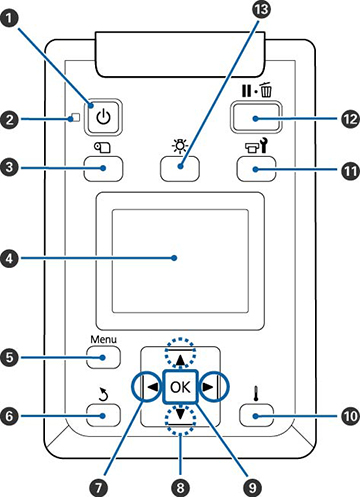
 power
power media setup
 back
back heat/dry menu
 maintenance
 pause/cancel
 internal light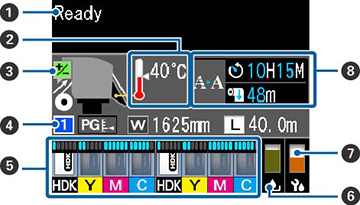
 : After heater is the selected
temperature
: After heater is the selected
temperature : After heater has not yet
reached the selected temperature
: After heater has not yet
reached the selected temperature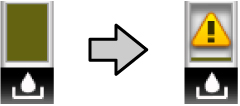
 : Waste ink bottle is almost full;
prepare a new waste ink bottle
: Waste ink bottle is almost full;
prepare a new waste ink bottle : Waste ink bottle is full; replace
the waste ink bottle
: Waste ink bottle is full; replace
the waste ink bottle : The level on the icon goes
down as replacement time approaches
: The level on the icon goes
down as replacement time approaches