To add your
product to a wireless network, you may need to know the name (SSID)
and password of your wireless network. If it has security enabled,
you also need to know the WEP key or WPA passphrase.
Note: You may
also need to know your network name (SSID) and password if your
computer is connected to a router using an Ethernet cable.
If your computer does not have a CD/DVD drive or you are using a Mac, an Internet connection is required to obtain the product software.
- Make sure your product is turned on but NOT CONNECTED to your computer with a USB
cable.
Note: With Windows, if you see a Found New Hardware screen, click Cancel and disconnect the USB cable.
- Insert the product CD or visit epson.com.jm/support and select your product to
download and run your product's software package.
Note: With Windows, if you see the message Do you want to allow this app to make changes to your device?, click Yes, then click OK on the next screen. On a Mac, if you see the message "EPSON" is an application downloaded from the Internet. Are you sure you want to open it?, click Open.
- Select your language and click Next (Windows), or click Continue and click Continue again (Mac).
- Accept the software license agreement to continue with software installation.
- When you see one of these
screens, click Install.
Windows
Mac
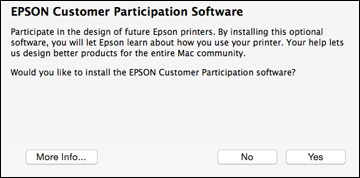
Note: On a Mac, make sure you install Software Updater to receive firmware and software updates for your product.Software installation may take several minutes. Wait for the installation to complete. - Mac: If you see the following message, click Yes or No to continue.
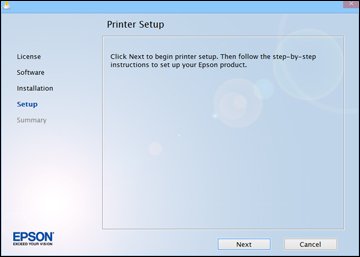
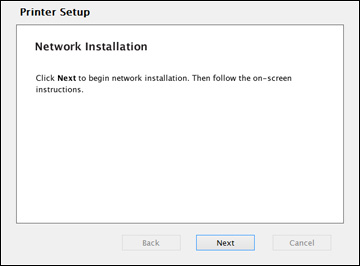
- When the Printer Setup screen appears, click Next (Windows) or Start (Mac) to begin setting up your product on your network.
- Confirm that the ink is
charged and do one of the following:
- If the ink is charged, click the checkbox on the screen and click Next (Windows) or Continue (Mac).
- If you have not charged the ink, follow the instructions on the Start Here sheet.
- When you see this screen, select Wireless connection and click Next (Windows) or Continue (Mac).
- When you see this screen, select Set up printer for the first time and click Next (Windows) or Continue (Mac).
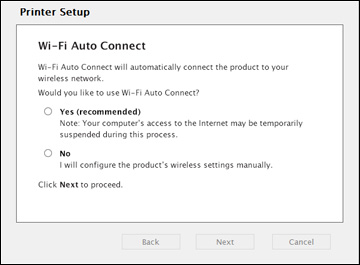
- When you see this screen, select No and click Next (Windows) or Continue (Mac).
- Windows: When you see this screen, select Using temporary USB cable connection and click Next.
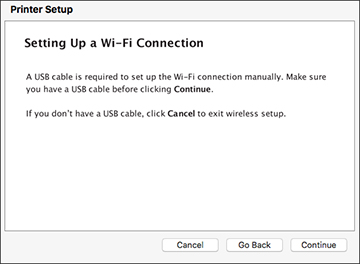
- Mac: When you see this screen, click Continue.
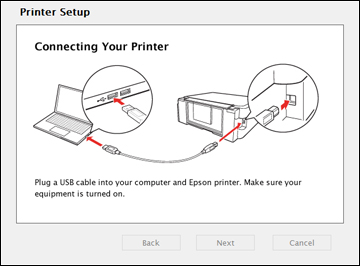
- When you see this screen,
connect a USB cable as shown and wait for the installer to detect
your product.
Note: If your product is not detected, make sure that it is turned on.
- When you see this screen, click Next (Windows) or Start Network Setup (Mac).
- If you see the Firewall
Warning screen, click Next to
continue.
Note: If you see a firewall alert message, click Unblock or Allow to let EpsonNet Setup continue. Do not select Ask Me Later, Keep Blocking, or Block.
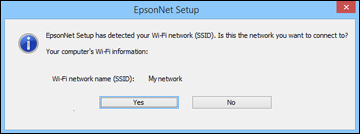
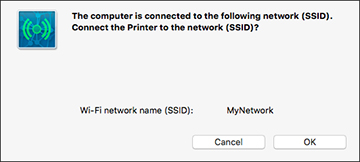
- If you see this screen, click Yes (Windows) or OK (Mac).
- Do one of the
following:
- Windows: If you have a wireless computer or laptop, go to step 20.
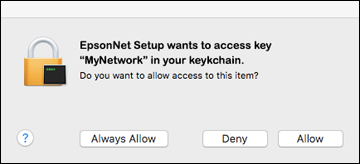
- Mac: If you have a wireless computer or laptop and you see the following messages, click OK and click Allow to let EpsonNet Setup access your password information. Then continue with step 20.
- All other users: Continue with step 19.
- If you see a screen asking you to select your product, select it and click Next. If your computer is connected to your router with an Ethernet cable, you may be prompted to enter your network name (SSID) and password.
- Wait while your system searches for your network name (SSID), then select the SSID from the displayed list and click Next.
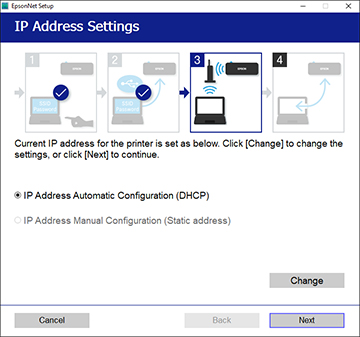
- When you see this screen,
choose IP Address Automatic
Configuration (DHCP) and click Next. If you need to change the IP address
manually, click Change and follow
the on-screen instructions.
Note: If your WPA passphrase contains upper- or lowercase letters, be sure to note it correctly. If you do not know your wireless network name (SSID), WEP key, or WPA passphrase, contact the person who set up your wireless network before continuing.
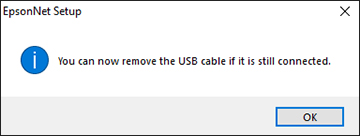
- Wait several minutes for wireless network configuration to finish and display a confirmation message. When you see this prompt, disconnect the USB cable and click OK. Then click Finish on the Installation Complete screen.
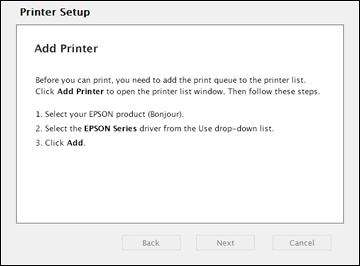
- Mac: When you see this screen, click
Add Printer and follow the
on-screen instructions to add your product and the print queue to
your system. Then click Continue.
Note: Be sure to select your Epson product in the Use or Print Using drop-down list.
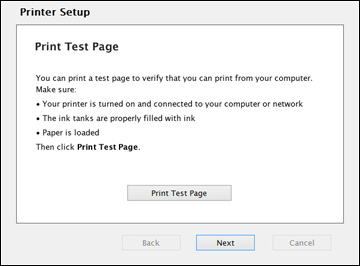
- When you see this screen, print a test page and click Next (Windows) or Continue (Mac).
- Windows: The system begins searching for the
latest firmware for your product. If you see a screen indicating
that there is new firmware for your product, click Install item(s) and follow the on-screen
instructions.
IMPORTANT: DO NOT TURN OFF YOUR PRODUCT OR INTERRUPT THE FIRMWARE SEARCH PROCESS IN ANY WAY.
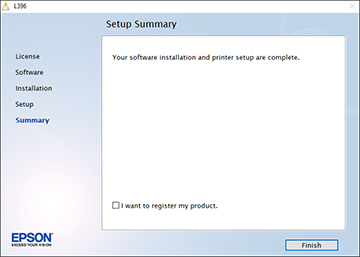
- Follow the on-screen instructions to complete product setup. When you see this screen, click Finish (Windows) or Close (Mac) to close the installation program.