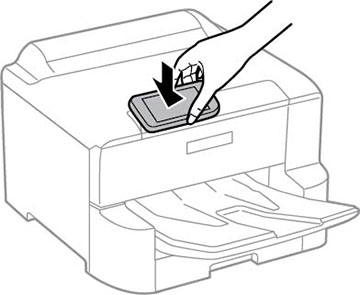
You can
easily connect your Android 4.0 or later device to your product
using NFC (Near Field Communication). Once connected, you can print
using Epson iPrint.
- Make sure Epson iPrint is installed on your mobile device.
- Make sure Simple AP mode is enabled on your product, that
you are using the default Wi-Fi Direct password, and that paper is
loaded in the product.
Note: NFC printing will not work if you changed the default Wi-Fi Direct password.
- Touch the NFC antenna of your mobile device to the NFC tag
on your product.
Note: The location of your mobile device's NFC antenna varies. See your mobile device documentation for more details.Epson iPrint opens.Note: If you do not have Epson iPrint installed, the app store page for the Epson iPrint app opens. Install Epson iPrint and repeat this step.
- Touch the NFC antenna of
your mobile device to the product NFC tag on your product
again. The printer and mobile device connect.
Note: If the mobile device and product disconnect, try to print a document. The mobile device and product should reconnect automatically.
- Open the file you want to print in Epson iPrint.
- Touch the NFC antenna of your mobile device to the NFC tag on your product to start printing.