- Make sure your digital certificate file is compatible with projector registration.
- Make sure the projector is turned on.
- Start your web browser on a computer or mobile device connected to the network.
- Type the projector's IP address into the browser's address box and press the computer's Enter key. You see the Web Control screen and a prompt to enter a user ID and password.
- Enter the following information in uppercase or lowercase letters, exactly as shown:
- Select Advanced.
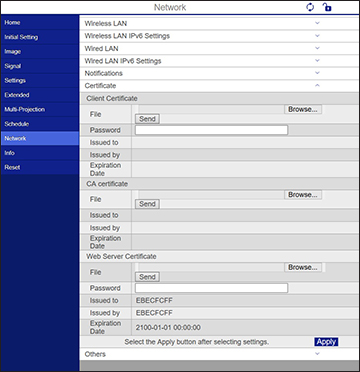
- Under Network, select Certificate. You see a screen like this:
- Click the Choose File button, select the certificate file, and click Open.
- Enter a password in the Password box.
- When you finish registering the certificate, click Apply to finalize your changes and complete the registration.