- Select the
 icon, and enter your user name
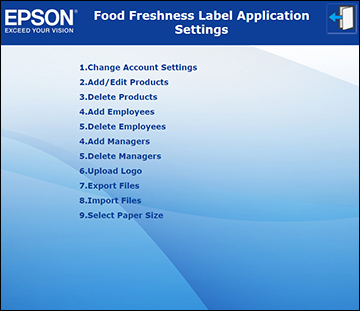
and password, if necessary. You see the main Settings
screen:
icon, and enter your user name
and password, if necessary. You see the main Settings
screen:
- Do one of the following:
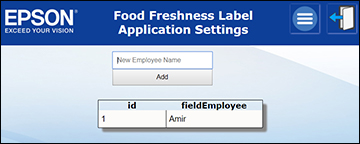
- Select Add Employees to add an employee. Then enter the new employee name and select Add.
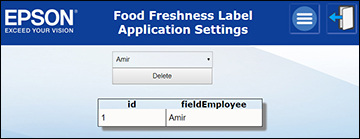
- Select Delete Employees to delete an employee. Then select the employee from the drop-down menu and select Delete.
- Select the
 icon to return to the main
Settings screen or the
icon to return to the main
Settings screen or the  icon to return to the home
screen.
icon to return to the home
screen.