Once you
have set up the app for your kitchen, you can print labels for the
products in your product list. Use a computer or other web-enabled
device to print your labels.
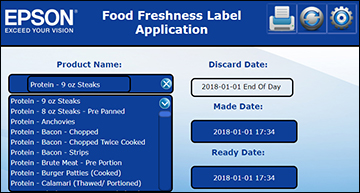
- Open the web browser on your device and enter the printer's IP address. You see the home screen for the app:
- Select a product from the product list.
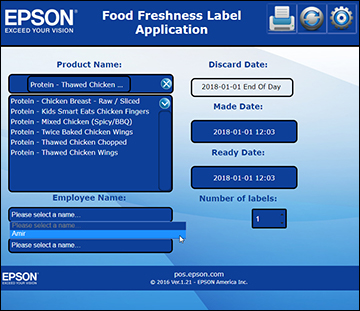
- Select an employee from the employee list.
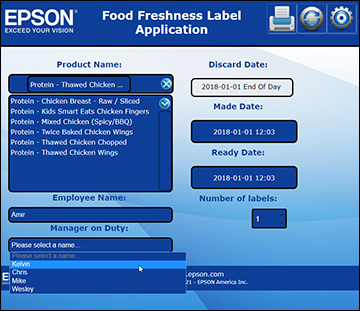
- Select a manager from the manager list.
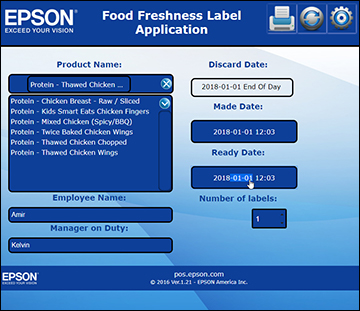
- Check the Discard, Made, and Ready
Date fields for accuracy. If you need to change them, select the
 icon to reset the Made and Ready
Date fields, or select the Made Date or Ready Date fields to edit
them individually.
Note: If you modify a Made Date, the Ready Date automatically changes to the same date. You can then change the Ready Date manually, if necessary.
icon to reset the Made and Ready
Date fields, or select the Made Date or Ready Date fields to edit
them individually.
Note: If you modify a Made Date, the Ready Date automatically changes to the same date. You can then change the Ready Date manually, if necessary. - Select the
 icon to print the label.