Printing Enlarged Copies from the Scanner
After the scanner and printer are connected and originals are placed in the scanner, you can print enlarged copies from the printer.
Turn on the printer and the scanner.
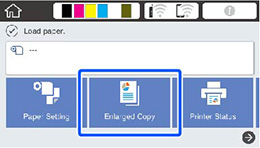
The
Enlarged Copy
option appears on the LCD screen:
Note:
If you do not see the
Enlarged Copy
option, make sure the printer and scanner cables are connected correctly and the scanner is turned on.
Make sure roll paper is loaded in the printer.
Note:
Only roll paper is supported for enlarged copies.
Select
Enlarged Copy
.
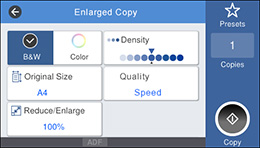
You see a screen like this:
Select the size of your original as the
Original Size
setting.
Select a
Reduce/Enlarge
option to set the output size.
Note:
If you select
Auto Fit Page
, the copy is enlarged to fit the width of the roll paper.
Select any other settings as necessary.
Select the number of copies as the
Copies
setting.
Select
Copy
on the printer LCD screen or the scan button on the scanner to begin copying.
Supported Copy Sizes
Parent topic:
Using Your Printer as a Copier