You can
create a coloring book page from a photo on your memory card, or
from a photo or drawing placed on the scanner glass.
- Load one of these types of paper in either Letter (8.5 × 11 inches [216 × 279 mm]) or A4 (8.3 × 11.7 inches [210 × 297 mm]) size:
- Insert a memory card or place a photo or drawing on the scanner glass.
- Press the
 home button, if
necessary.
home button, if
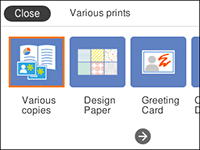
necessary. - Select Various prints.
- Select Coloring Book.
- Select one of the following settings:
- Select the size and type of paper that you loaded, and where you loaded it.
- If necessary, adjust the following settings:
- Press the right arrow button.
- Press the
 start button.
 cancel