You can scan
a document and save the text in a searchable PDF. In a searchable
PDF, text is recognized using Optical Character Recognition (OCR)
and then embedded in the scanned original.
- Load your original in the product for scanning.
- Start Epson Scan 2.
- Select your scan settings.
- Click Preview and adjust the area you want to scan, if necessary.
- If you are using the ADF, reload the ejected original.
- Select Searchable PDF as the Image Format setting.
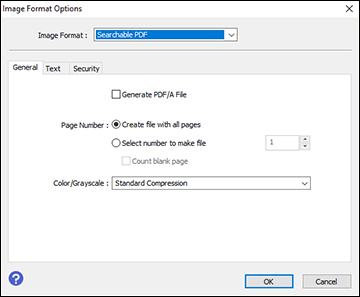
- Select Options from the Image Format list. You see this window:
- Select any of the options on the General tab.
- Select the Text tab.
- Make sure the language used in the document text is selected as the Text Language setting.
- Select the Security tab if you want to add a password to the PDF or protect printing or editing properties.
- Click OK.
- Confirm the File Name setting and select a Folder setting for your document.
- Click Scan. The scanned image is saved as a searchable PDF.