You can run
a Power Cleaning using the control panel on your product.
Note: After
running a Power Cleaning, you must turn off the product and wait at
least 6 hours before printing a nozzle check pattern and running
another Power Cleaning or Print Head Cleaning.
- Make sure there are no errors on the LCD screen and the CD/DVD tray is not inserted for printing.
- Load a few sheets of plain paper in Cassette 2.
- Press the
 home button, if
necessary.
home button, if
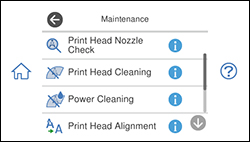
necessary. - Select Maintenance. You see a screen like this:
- Select Power Cleaning.
- Select Start. The
 power light flashes throughout
the cleaning cycle and stays on until the nozzle check pattern is
printed. After the nozzle check pattern is printed, you see a
message on the screen.
Caution:Never turn off the product or open the scanner unit during a cleaning cycle or you may not be able to print.
power light flashes throughout
the cleaning cycle and stays on until the nozzle check pattern is
printed. After the nozzle check pattern is printed, you see a
message on the screen.
Caution:Never turn off the product or open the scanner unit during a cleaning cycle or you may not be able to print. - Select OK.
If the print quality did not improve, you must turn off the product and wait at least 6 hours before printing another nozzle check pattern and running another Power Cleaning or Print Head Cleaning.
If the print quality does not improve after running the Power Cleaning utility multiple times, contact Epson for support.