- Press the Menu button.
-
Select the Multi-Projection menu and press
 Enter.
 -
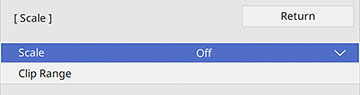
Select the Scale setting and press Enter. You see this screen:
- Select one of the following as the Scale setting:
- Select the Scale Mode setting and select one of these options:
- If you selected Auto as the Scale setting, you can skip the remaining steps. If you selected Manual, adjust each of the following options as necessary:
- Select the Clip Adjustment setting and use the arrow buttons to adjust the coordinates and size of each image as you view the screen.
- Select the Clip Range setting to preview the area you just selected.
- Press the Menu button to exit.