You can
configure the paper basket to catch printouts in the front the
product. You should remove prints as they are ejected. Allowing
prints to pile up in the paper basket may damage the prints or
cause prints to be ejected incorrectly.
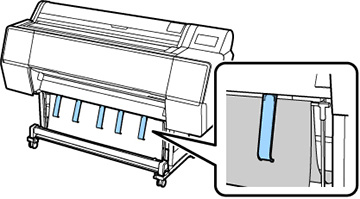
- Make
sure the paper guides lay on top of the paper basket as shown
below:
Note: The SureColor P7500 Series printer has two paper guides; the SureColor P9500 Series has five.
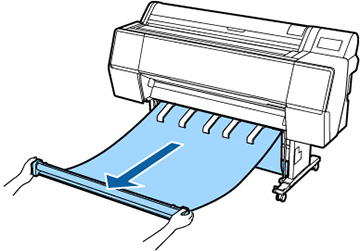
- Hold the basket roll with two hands and pull it straight down. Adjust the length of the basket cloth based on the length of the intended print.
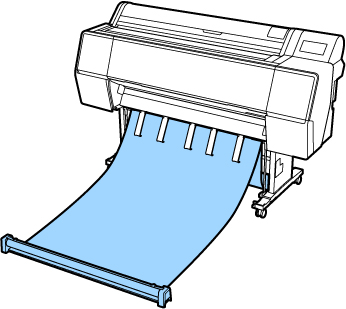
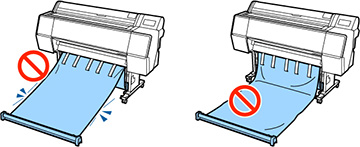
- Place the basket roll so that the basket cloth does not touch the ground.
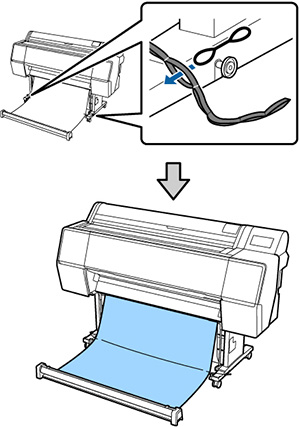
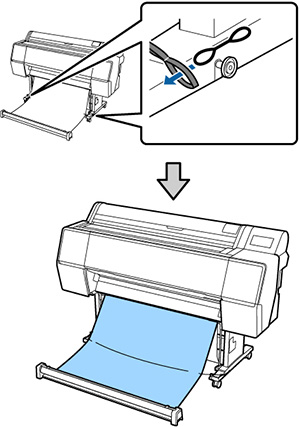
- To adjust the angle of the basket,
adjust the length of the straps on the left and right of the
basket.
- For a steeper angle, shorten the straps by attaching the loops that are closer to the basket to the hook on the stand.
- For a shallower angle, lengthen the straps by attaching the loops that are closer to the end of the strap to the hook on the stand.