- Make sure there are no errors on the LCD screen.
- Load a few sheets of plain paper in the product.
- Press the
 home button, if
necessary.
home button, if
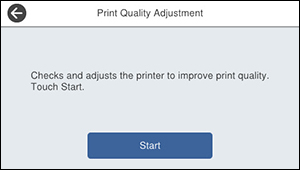
necessary. - Select Settings > Maintenance > Print Quality Adjustment. You see a screen like this:
- Select Start.
- Follow the on-screen instructions to print an alignment
sheet.
Note: Do not cancel printing while you are printing head alignment patterns.
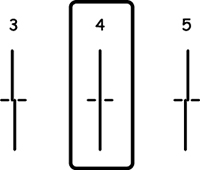
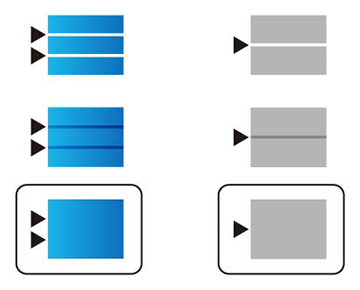
- Check the printed patterns on the alignment sheet and select the following on the LCD screen:
- Select Done.