You
can use the projector's Arc Correction setting to adjust the curve
or arc of the sides of your image.
Note: If you
change the Screen Type setting or
adjust the image position, your image adjustments are
reset.
- Turn on the projector and display an image.
-
Press the Menu button.
Note: You can also open the Geometry Correction screen using the Keystone button on the remote control. If you press the Keystone button on the remote control, skip to step 5
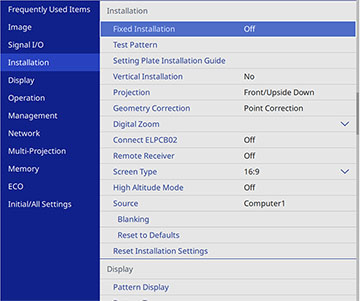
- Select the Installation menu and press Enter.
- Select the Geometry Correction setting and press Enter.
- Select the Arc Correction setting and press Enter. If you see a confirmation screen, select Yes and press Enter.
-
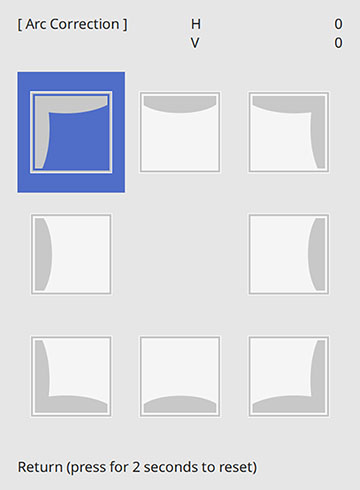
Select Arc
Correction and press Enter. You see the Arc Correction
adjustment screen:
Note: To reset your adjustments, press the Esc button for at least 2 seconds to display a reset screen, and select Yes.
- Use the arrow buttons on the projector or the remote control to select the corner or side of the image you want to adjust. Then press Enter.
- Press the arrow buttons to adjust the image shape as necessary.
-
When you are finished, press Esc.
Note: You can fine tune the corrected results. Use Quick Corner to adjust the tilt of the image and then use Point Correction for fine tuning. Select Quick Corner or Point Correction at the screen in step 5.