If you see a message that paper has jammed in the rear cover, follow the steps here or on the LCD screen to clear the jam.
- Cancel the print job, if necessary.
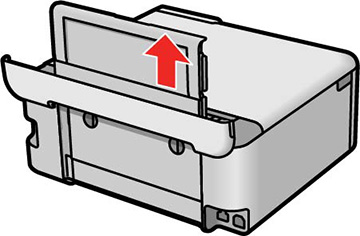
- Extend the rear paper support and tilt it back.
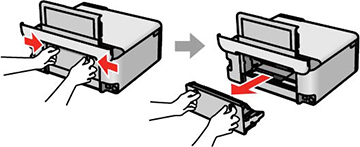
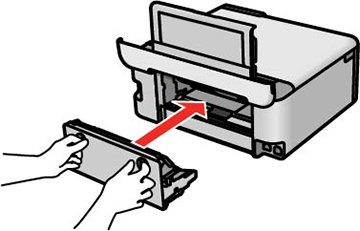
- Press the buttons to release the rear cover and remove it from your product.
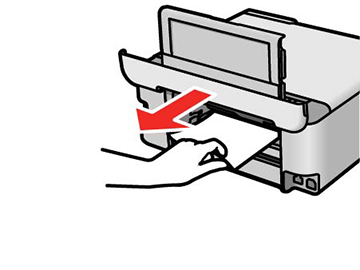
- Carefully remove any jammed paper from inside the product.
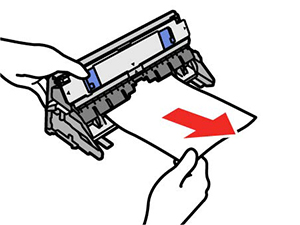
- Remove any
jammed paper from the rear cover.
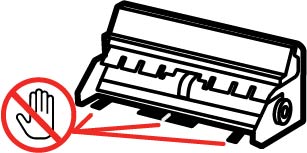
Caution:
- Reinsert the rear cover into your product.
- Follow the prompts on the LCD screen to clear any error messages. If you still see a paper jam message, check the other paper jam solutions.