- Load photo paper in your product.
- Insert a memory card into
your product's memory card slot.
Note: If Auto Selection Mode is turned on in the Guide Functions menu, select to function index when you see the information screen.
- Select the
 home icon, if
necessary.
home icon, if
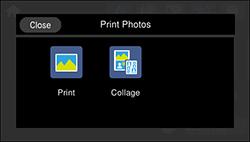
necessary. - Select Print Photos.
- Select Print and select OK. You see a screen like this:
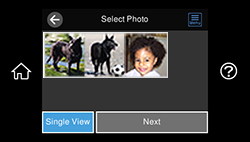
- Do one of the following to select your photos:
- Select the thumbnail images of the photos you
want to print. Each photo you select has a number on it to indicate
the number of prints you selected.
Note: If you want to print multiple copies of a photo, select Single View and press the + or - button to adjust the number of prints. Select Tile View to return to the thumbnail image view and select additional photos.
- To select all photos or a group of photos,
select the
 menu icon and select Select All Photos.
Note: The number of prints you select for each photo will be multiplied by the number of copies you select before printing. - Select the thumbnail images of the photos you
want to print. Each photo you select has a number on it to indicate
the number of prints you selected.
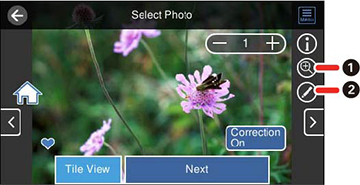
- If you need to edit a
photo, select Single View during
photo selection and select the left or right arrows to scroll to
the photo you want to edit. You see a screen like this:
1 Lets you zoom in and out of the photo. 2 Lets you apply filters, make color and red-eye corrections, and adjust cropping, rotation, brightness, contrast, sharpness, and saturation if necessary. Note: Press the Correction On button to switch between Correction Off and Correction On. With Correction On selected, any corrections you make to a photo are displayed on the screen. With Correction Off selected, any corrections you make will only be applied to your printouts. - Select Next and select your paper and print settings as necessary.
- Select Copies to change the number of copies as
necessary.
Note: The number of copies you enter applies to each selected photo, including the number of prints already selected for each.
- When you are ready to print, select the Print icon.
Note: To cancel printing, select Cancel and select Close to exit.