If you have problems with paper jams, try these solutions:
- Cancel the print job from your computer, if necessary.
- Gently pull out any jammed paper from the rear paper feed slot.
Note: When removing jammed paper, avoid tilting the printer, placing it vertically, or turning it upside down; otherwise ink may leak.
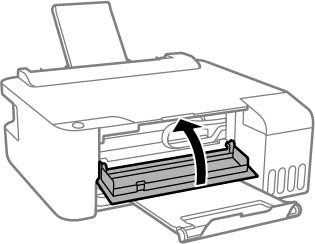
- Open the front cover.
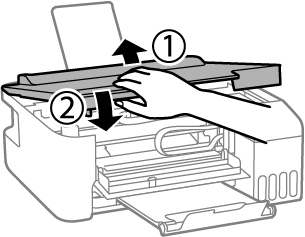
- Open the printer cover until it clicks.
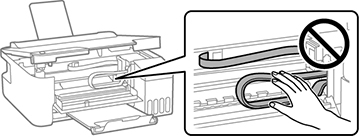
- Gently remove any jammed paper.
Caution:
- Close the printer cover.
- Close the front cover.
- Carefully follow all paper loading instructions when you load new paper.



Note: If the paper
jam error continues after removing the paper and turning the power
off and on again, paper may remain inside the printer. Load letter-
or A4-size paper in the rear paper feed, and then press the
 stop button to remove the
paper inside. If the error cannot be cleared, contact Epson
support.
stop button to remove the
paper inside. If the error cannot be cleared, contact Epson
support.
stop button to remove the
paper inside. If the error cannot be cleared, contact Epson
support.