- Make sure there are no errors on the LCD screen and the output tray is extended.
- Load a few sheets of plain paper in the product.
- Press the
 home button, if
necessary.
home button, if
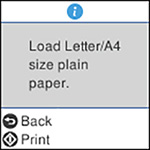
necessary. - Select Maintenance and press the OK button. You see a screen that looks like this:
- Press the OK button again to select Nozzle Check.
- Press the
 start button to print.
The nozzle check pattern is printed.
start button to print.
The nozzle check pattern is printed. - Check the printed pattern to see if there are gaps in the
lines.
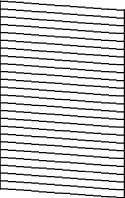
Print head is clean
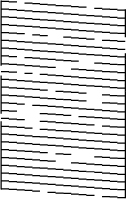
Print head needs cleaning
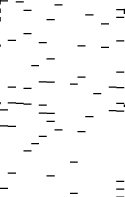
Print head needs Power Cleaning
- Do one of the following:
- If there are no gaps, the print head is clean. Select No and press the OK button.
- If there are gaps or the pattern is faint, select Yes and press the OK button. Follow the instructions on the screen to clean the print head.
- If all or most of the lines are missing, select No and run a Power Cleaning instead.