You can
select a variety of additional layout and printing options for your
document or photo on the More
Options tab.
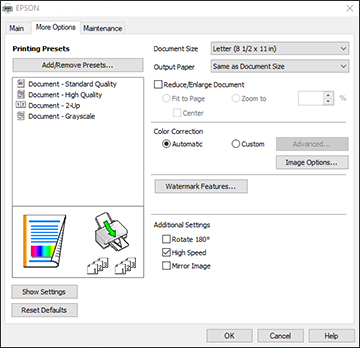
- To
change the size of your printed document or photo, select the
Reduce/Enlarge Document checkbox and
select one of these sizing options:
- Select the Fit to Page option to size your image to fit the paper you loaded. Select the size of your document or photo as the Document Size setting, and the size of your paper as the Output Paper setting. If you want to center your image on the paper, select the Center option.
- Select the Zoom to option to reduce or enlarge your document or photo by a specific percentage. Select the percentage in the % menu.
- Select
one of the following Color Correction options:
- Select Automatic to automatically adjust the sharpness, brightness, contrast, and color saturation for your image.
- Select Custom and click the Advanced button to manually adjust the color correction settings or turn off color management in your printer software.
- Select Image Options to access additional settings for improving printed images.
- To add the following features, click the Watermark Features button:
- Select any of the Additional Settings options to customize your print.