You can load
paper up to 11 × 17 inches
(279 × 432 mm) in the paper cassette and up
to A3+ (13 × 19 inches [329 × 483 mm]) in
the paper tray (rear paper feed slot).
Note: Before
loading paper, make sure your product is not currently
printing.
- Use the arrow buttons to select the
 icon and press the OK
button.
icon and press the OK
button. - Select How To and press the OK button.
- Press the OK button to select Load Paper.
- Do one of the following:
- Load long paper in the cassette as shown. Select User-Defined as the paper size setting. Make sure the end of the paper is cut perpendicularly and do not touch paper that is being fed or ejected.
- If you are loading paper
in the paper tray, do one of the following:
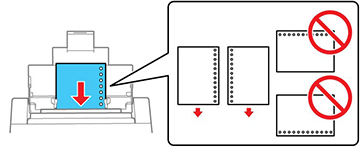
- Load a single sheet of loose-leaf or other
paper with holes as shown.
Note: Do not select automatic 2-sided printing for this type of paper and do not print over the holes. Select Letterhead or Preprinted as the paper type setting.
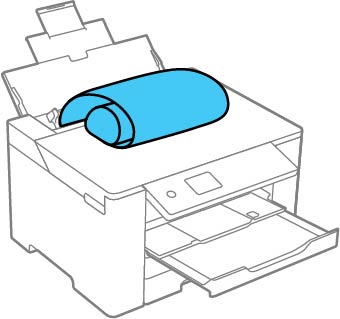
- Load long paper by allowing the paper to roll over as shown. Select User-Defined as the paper size setting. Make sure the end of the paper is cut perpendicularly and do not touch paper that is being fed or ejected.
- Load a single sheet of loose-leaf or other
paper with holes as shown.

Always follow these paper loading
guidelines:
- Do not remove or insert the paper cassette during printing.
- Load only the recommended number of sheets.
- Make sure you are using long-grain paper. If you are not sure what type of paper you are using, check the paper packaging or contact the manufacturer to confirm the paper specifications.
- Load paper short edge first and printable side facedown.
- Make sure the paper is under the tabs on the edge guides and not sticking out from the rear end of the cassette.
- If you have trouble loading a stack of envelopes, press each envelope flat before loading it or load one envelope at a time.
- If print quality declines when printing multiple envelopes, try loading one envelope at a time.
- Load letterhead or pre-printed paper top edge first.
- Check the paper package for any additional loading instructions.
- If the paper is curled, flatten it or curl it slightly in the opposite direction before loading.
- Fan and align the edges of the paper before loading. Do not fan or curl photo paper.
- Paper feed problems may occur frequently for manual 2-sided printing when printing on one side of preprinted paper. Reduce the number of sheets to half or less, or load one sheet of paper at a time if paper jams continue.