You
can use the Color Uniformity feature to manually adjust the color
tone balance in the projected image.
Note: These
settings should be set by a professional color calibrator using
specialized color calibration tools in a controlled lighting
environment.
Note: The
color tone may not be uniform even after adjusting the color
uniformity.
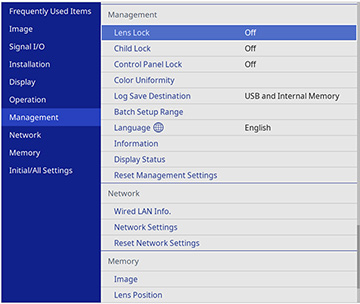
- Press the Menu button.
- Select the Management menu and press Enter.
-
Select the Color
Uniformity setting and press Enter.
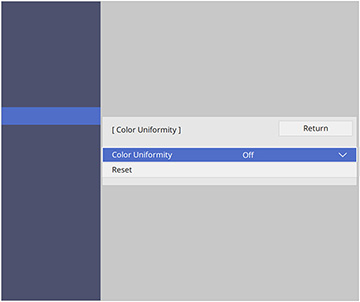
- Select the Color Uniformity setting again and press Enter.
- Select On and press Esc.
- Select the Adjustment Level setting and press Enter.
- Press the right and left arrow buttons to adjust the level and press Esc.
- Select the Start Adjustments setting and press Enter.
-
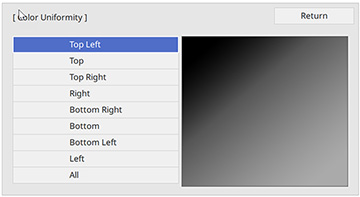
Select the area of the screen that you want to
adjust and press Enter.
Note: Adjust the outer areas first, then select All to adjust the entire screen.
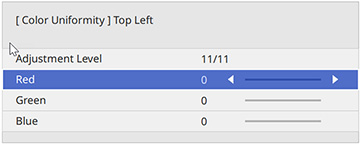
- Select the color you want to adjust. Use the left arrow button to weaken the color tone and the right arrow button to strengthen the color tone.
- Press Esc to return to the area selection screen.
- Repeat these steps for each area you want to adjust and for each adjustment level.
- Press Menu or Esc to exit the menus.