You can copy
a printed photo or CD/DVD label directly onto an ink jet-printable
CD or DVD. If you want, you can first print a test design on plain
paper.
- Load the CD, DVD, or plain paper you want to print on.
- Press the
 home button, if
necessary.
home button, if
necessary. - Select Various Prints.
- Select Copy to CD/DVD and select OK.
- Select Copy to CD/DVD
and follow the instructions on the LCD screen to do one of the
following:
- Place your photo facedown on the scanner glass.
- Place your CD or DVD facedown in the center of the scanner glass.
- Select Proceed to set up Outer/Inner.
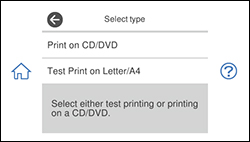
- If necessary, adjust the inner and outer diameter of your CD as shown on the screen, and select Select Type. You see this screen:
- Do one of the following:
-
To print on a CD or DVD, select Print on CD/DVD. Select How To to view CD loading instructions or select Installed if the CD is already loaded.
-
To print a test print on plain paper, select Test Print on Letter/A4. Select any copy settings as necessary.
-
- When you are ready to print, select Print on CD/DVD.
Note: To cancel printing, select Cancel and select OK to exit.