When you
scan with Document Capture, the program automatically saves your
scanned file on your computer in the folder you specify. You can
select settings, preview, and change the scanned file settings as
necessary. Document Capture also allows you to send the scanned
file directly to an email address or printer, or upload it to a
server or cloud destination.
Note: Settings may
vary depending on the software version you are using. See the
Help menu in Document Capture at any
time for more information.
- Load your original in the
product.
- Open the
Applications folder, open the
Epson Software folder, and select
Document Capture.
You see a window like this:
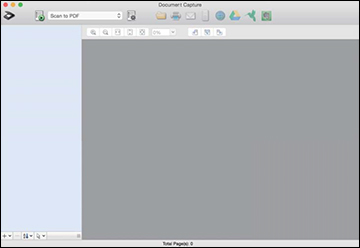
Note: You may need
to select your product from the drop-down list.
- Click
the
 scan icon.
You see a window like this:
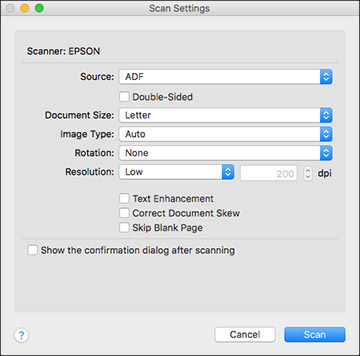
Note: If you want
to use a scan job that you created instead, select it from the Job
list in the Document Capture window, click the

Start Job button, and skip the rest of
these steps.
- Select
any displayed scan settings you want to use.
Note: See the Help
information in Document Capture for details.
- If you
want to select detailed scan settings, close the Scan Settings
window, open the Scan menu at the
top of the Mac desktop, and select Displays
the EPSON Scan Setup Screen.
- Click the Scan icon and
select any detailed scan settings you want to use from the Epson
Scan 2 window.
- Click
Scan.
You see a preview of your scan in the Document Capture window.
Note: You may have
to close the Epson Scan 2 window to view your scan in the Document
Capture window.
- If you
would like to scan additional originals and add them to the current
captured images, click the + icon, select Acquire from Scanner, and repeat the previous
steps.
- Check
the scanned images and edit them as necessary.
- Click
one of the destination icons to choose where to send your scanned
files. (If you cannot see all of the icons, click the arrow next to
the icons.) Change any settings as necessary.

Note: If you are
sending the scanned image to a server or cloud destination, you
need to enter your login information. If you want to use Evernote
as the destination, download the Evernote application from the
Evernote Corporation website and install it before scanning.
-
Depending on the destination you chose, click OK, Print, or
Send to complete the
operation.