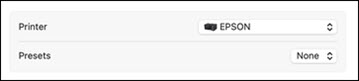
Select the
basic settings for the document you want to print.
Note: Some screens
may look different, depending on the Mac OS version you are
using.
- Open a
document for printing.
- Select
the print command in your application.
Note: You may need
to select a print icon on your screen, the Print option in the File menu, or another
command. See your application's help utility for
details.
- Select
your product as the Printer
setting.
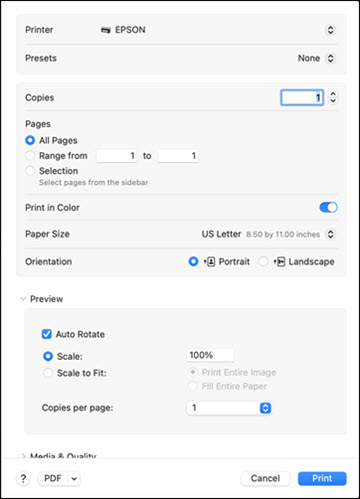
- If
necessary, click the arrow next to the Printer setting or the
Show Details button to expand the
print window. You see the expanded printer settings window
for your product:
Note: The print
window may look different, depending on the Mac OS version and the
application you are using.
- Select
the Copies and Pages settings as necessary.
Note: If you do
not see these settings in the print window, check for them in your
application before printing. They may be accessible by selecting
Page Setup from the File
menu.
- Select
the page setup options: Paper Size
and Orientation.
Note: If you do
not see these settings in the print window, check for them in your
application before printing. They may be accessible by selecting
Page Setup from the File menu. Paper sizes may include additional
options such as Borderless.
- Select any application-specific
settings that appear on the screen.
- Do one of the following:
- macOS 13: Select the Printer
Options menu and then select Printer
Settings.
- macOS 12 and earlier: Select Print
Settings or Printer Features
from the pop-up menu.
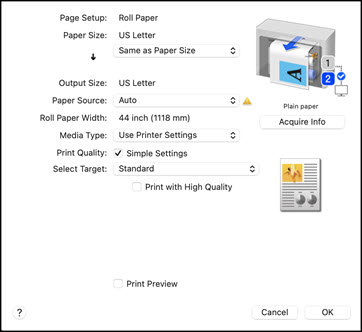
You see a screen like this:
Note: The
available print settings and appearance of the print window may be
different than those covered here, depending on the Mac OS version
and the application you are using.
- If Roll
Switching is set to Auto on
the printer's control panel settings, the screen will show the
settings for the roll paper currently in use. Change the paper, if
desired.
Note: Click
Acquire Info to refresh the settings
if you loaded or changed paper after opening the print
window.
- If necessary, select the Page Setup setting that matches the paper source
you are using.
Note: If you
select Roll Paper, select the width
of the roll as the Roll Paper Width
setting.
- If you want your printout to be a
different size than the displayed Paper Size setting, select the
Output Size setting in the dropdown
menu.
Note: Select
Specify Size to set a user-defined
output size.
- Select the Paper Source setting that matches the paper
feeding method you are using.
Note: If you
select Roll Paper, select the width
of the roll as the Roll Paper Width
setting.
- Select the Media Type setting that matches the paper you
loaded.
Note: If you want
to use paper settings that have been set in the printer's control
panel, select Use Printer
Settings.
- Select the Select Target setting that matches the document
you are printing.
Note: If you want
the printer driver to determine print settings based on the
document type, select the Simple
Settings checkbox. Deselect the checkbox if you want to
select your own color correction, print mode, or other
settings.
- If you want to prioritize quality over
print speed, select Print with High
Quality.
- If you deselect the Simple Settings checkbox, the following options
are available:
Note: Available
options depend on the selected Select
Target setting.
- To see a preview of how your document
will print, select Print Preview.
(The preview appears after you click Print but before printing starts.)