- Connect the computer or video equipment you want to use to one of the projector's HDMI ports, if necessary.
- Connect the power cord to
the projector's power inlet.
Note: For the EB-PU2120W/EB-PU2220B models, a 200 - 240 V AC power source is required for operation at full brightness, however, you can use a 100 - 120 V AC power source with some limitations. When using a 120 V power cord, it should have a 3-prong plug, a 14 AWG rating and a C19 connector.
Check the serial number of your projector. If the serial number begins with either "XD9S" or "XD9T" and you are using a 100 - 120 V AC power source, the brightness of the projected image is limited to approximately 95% of the brightness compared to when using a 200 - 240 V AC power source.
If your serial number begins with "XAPY" or "XAP2" and you are projecting using a 100 - 120 V AC power source, the brightness of the projected image is limited to approximately 60% of the brightness compared to when using a 200 - 240 V AC power source. Additional limitations of using 100 – 120 V AC power include the use of only the Custom mode for the Light Source Mode setting. The Estimated Remains and Refresh Mode features are also not available.
Be sure to ground the power plug using a ground wire or 3-core power plug.
-
Plug the power cord into an electrical
outlet. The projector's On/Standby light turns blue. This indicates that the
projector is receiving power.
Note: With Direct Power On turned on, the projector turns on as soon as you plug it in. If you enable the Auto Power On setting in the projector's Operation menu, the projector turns on when it detects a signal or cable connection from the selected port.
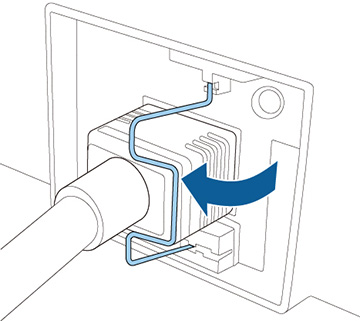
- If necessary, lock the power cord to prevent it from falling out.
-
Press the On button on the projector or remote control
to turn on the projector.
The projector beeps and the Status light flashes blue as the projector warms up. After about 30 seconds, the Status light stops flashing and turns blue.Note: When Quick Startup is enabled in the projector's Extended menu, the projector becomes ready for use in several seconds the next time you press the On button.Warning: Never look into the projector lens when the laser is on. This can damage your eyes and is especially dangerous for children and pets. If you are using the remote control to turn the projector on, make sure no one is looking into the lens or in front of the projector before turning it on.Caution:Make sure no objects are blocking the light from the projector lens. Objects blocking the lens for an extended time can melt and light that is reflected back into the lens can cause the projector to malfunction.

- Turn on the connected computer or video device.
- Insert a DVD or other video media and press the play button, if necessary.
- Press the Source Search button on the projector or the Search button on the remote control to detect the video source.
- Press the button for the video source on the remote control.
- If the Home screen is displayed, select the source you want to project.