You can
create folded and stapled booklets using your product, depending on
the installed options. You can also add front and back covers to
the booklet.
Note: This
feature requires the optional staple finisher and saddle
unit.
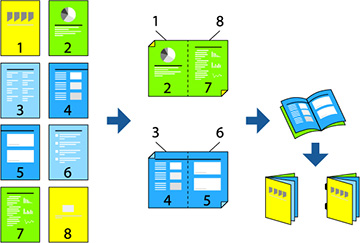
- Place your originals on the ADF.
- Press the
 home button, if
necessary.
home button, if
necessary.
- Select Copy.
- Select Basic Settings and then select Paper Setting and select the paper source for your copies.
- Select 2-Sided and then select either 2>2-Sided or 1>2-Sided depending on your originals.
- Select other settings such as the original orientation and the binding position and then select OK.
- If necessary, select Reduce/Enlarge and make any adjustments.
- Select the Advanced tab and enable the Booklet > Booklet setting.
- Specify the binding position and binding margin and select OK.
- If you want to add covers to the booklet, enable the Cover setting.
- Select either Saddle Stitch or Half Fold and enable the setting.
- Select other settings such as the number of sheets per fold or staple.
- When you are ready to copy, select the Copy icon.
Note: Make sure there are no booklets or paper in the booklet output tray or you will not be able to start printing.