You can select the printing settings you want to use for your stored files.
Basic Settings
| Printing option | Available settings | Description |
|---|---|---|
| Auto | — | Prints the document in the detected color of the original. |
| Color (AM-C4000/AM-C5000/AM-C6000) | — | Prints the document in color. |
| B&W (AM-C4000/AM-C5000/AM-C6000) | — | Prints the document in black and white. |
| Paper Setting | Various sources | Select the paper source that you want to use. If you select Auto, paper is fed automatically depending on the paper settings you selected for the paper sources. |
| Reduce/Enlarge | Saved Settings | Applies settings you have previously made for saving to storage |
| Auto | Automatically sizes the image to fit the paper size you selected. | |
| Actual Size | Prints the original at its full size. | |
| User-defined (mm) | Specifies the target size in millimeters. | |
| User-defined (%) | Specifies the amount of scaling in percentage for length and width | |
| Reduce to Fit Paper | Automatically decreases the size of the image by the percentage you select. | |
| 2-Sided | On | Select On for 2-sided printouts and then scroll down to select the orientation and binding edge for your printouts. |
| Off | ||
| Multi-Page | Single Page | Copies each page of the original onto an individual sheet. |
| 2-up | Copies multiple page documents onto one sheet. Scroll down and select the document orientation and layout order settings as necessary. | |
| 4-up | ||
| Finishing | Group (Same Pages) | Select to print multiple copies of a multi-page document in unordered groups |
| Collate (Page Order) | Select to print multiple copies of a multi-page document in ordered sets | |
| Eject Paper | Select Rotate Sort to stack printouts alternately in landscape and portrait orientations. Select Shift Sort* to offset each set of printouts. | |
| Staple* | Select a staple option to choose the staple location on the printouts. | |
| Punch** | Select a location for the punch holes. | |
| Booklet | On | Select On and then adjust settings as necessary when making a booklet from your printouts. |
| Off | ||
| Booklet | Binding: Sets the
binding position
Binding Margin: Specifies the binding margin in 1 mm increments from 0 to 50 mm. Cover: Allows you to add a cover to the booklet Paper Setting: Selects the paper source for the cover paper Front Cover: Specifies the settings for the front cover. If you want a blank cover, select Do Not Print Back Cover: Specifies the settings for the back cover. If you want a blank cover, select Do Not Print |
|
| Saddle Stitch* | Saddle Stitch:
Enables saddle stitching
Sheets per Staple: Specifies the number of pages in each stapled section Split: Allows you to print separately Cover: Allows you to add a cover to the booklet Paper Setting: Selects the paper source for the cover paper |
|
| Half Fold | Saddle Stitch:
Enables saddle stitching
Sheets per Staple: Specifies the number of pages in each stapled section Split: Allows you to print separately Cover: Allows you to add a cover to the booklet Paper Setting: Selects the paper source for the cover paper |
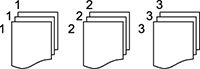
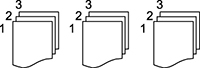
* Displayed when the optional finisher unit is installed.
** Displayed when the optional finisher and punch unit are installed.
Advanced settings
| Printing option | Available settings | Description |
|---|---|---|
| Fold | Half Fold | Half Fold: Enables
printing with half folds
Sheets per Fold: Specifies the number of pages in each folded section Split: Allows you to split copies when they are ejected Cover: Allows you to add a cover to the booklet Paper Setting: Selects the paper source for the cover paper Print Mode: Selects whether to print on the outside or inside of the half folded paper |
| Tri Fold | Tri Fold: Enables
printing with half folds
Sheets per Fold: Specifies the number of pages in each folded section Print Mode: Selects whether to print on the outside or inside of the half folded paper Open Orientation: Selects the direction of the folds |
|
| Cover & Slip Sheet | Cover |
Front Cover: Specifies the settings for the front cover. If you want a blank cover, select Do Not Print Back Cover: Specifies the settings for the back cover. If you want a blank cover, select Do Not Print |
| Slip Sheet | Adjust these settings to insert slip sheets into your
printouts.
End of Job: Adds a sheet at the end of each copy of the job. If you have loaded paper for the slip sheets, select the paper source as thePaper Setting setting. End of Set: Adds a sheet at the end of each set. To insert the slip sheet after a certain number of pages, select Sheets per Set and enter a value. If you have loaded paper for the slip sheets, select the paper source as thePaper Setting setting. End of Page or Chapter: Allows you to insert slip sheets at individual pages. The setting values are saved and displayed in a list. Select the setting to edit, delete, or review the values. |
|
| Binding Margin | Off | Select On to adjust the margin, binding position, and orientation of the pages for 2-sided printing. |
| On | ||
| Reduce to Fit Paper | Off | Select On to automatically decrease the image by the percentage you select. |
| On | ||
| Print Sets | Off | Select On to print the document in groups of saved quantities and settings. |
| On | ||
| Output Tray | Face Down Tray | Select which output tray to use. |
| Finisher Tray | ||
| Auto | ||
| Stamp | Stamp | Select On to include stamps in your printout |
| Type | Selects the stamp type | |
| Stamp Position | Selects the stamp position | |
| Print Page | Selects the page where the stamp appears | |
| Size | Controls the size of the stamp | |
| Print Color | Selects the color for the stamp | |
| Transparency | Controls the transparency of the stamp | |
| Date Stamp | Date Stamp | Adds a date stamp to your printouts when enabled |
| Date Format | Selects the date format | |
| Stamp Position | Selects the stamp position | |
| Size | Controls the size of the stamp | |
| Background | Controls whether the date stamp has a white background | |
| Page Numbering | Off | Select On to print page numbers on your printouts and select the format settings as necessary. |
| On | ||
| Print Position Shift | Off | Select On and set the margins at the top and left of the paper to adjust the print position of the document. |
| On |