- Make sure there are no errors on the LCD screen.
- Load a few sheets of plain paper in the product.
- Press the
 home button, if
necessary.
home button, if
necessary. - Select Settings > Maintenance > Print Head Nozzle Check.
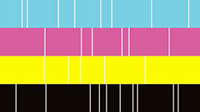
- Select a paper cassette with Letter (8.5 × 11 inches [216 × 279 mm]) or A4 (8.3 × 11.7 inches [210 × 297 mm]) paper and select OK. The nozzle pattern prints.
- Check the printed pattern to see if there are gaps in the
lines.
Print head is clean
AM-C4000/AM-C5000/AM-C6000

AM-M5500
Print head needs cleaning
AM-C4000/AM-C5000/AM-C6000
- Do one of the following:
- Follow the instructions on the screen to clean the print
head, check the nozzles, and repeat the process as
necessary.
Caution:Never turn off the product or open the front cover during a cleaning cycle or you may not be able to print.